


There are many reasons for the 500 internal errors in WordPress, but we will tackle this issue because a corrupted .htaccess is usually the leading cause.
WordPress uses the server configuration .htaccess file to control the redirects of your website.
A corrupted .htaccess file can create an infinite redirect loop, which causes WordPress to ‘give up’ and display an internal error.
The quickest way to fix the internal error or conflict is to generate a new .htaccess file.
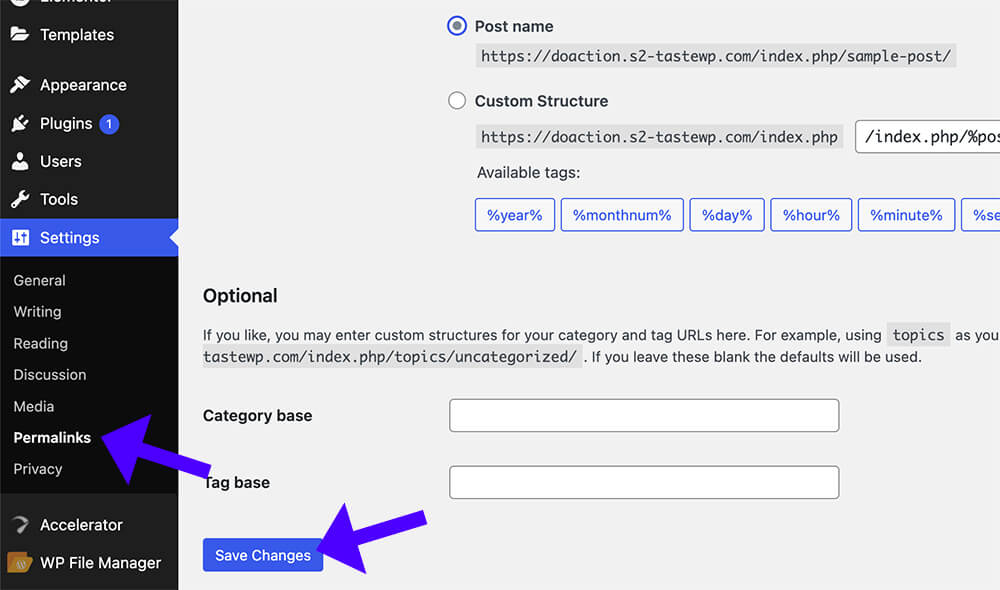
To do that, navigate to Settings -> Permalink -> and click the Save Changes button without changing anything.
If you don’t have access to your WordPress website’s backend, you’ll need to access it using FTP or your hosting company’s file manager interface.
The .htaccess file is located in WordPress’s parent directory.
First, back up the .htaccess file by renaming it to something else.
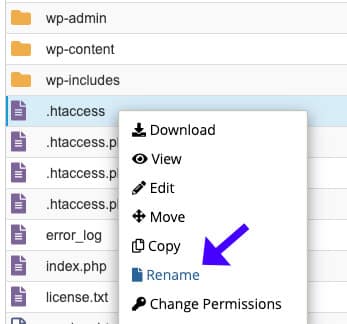
A simple change to .htaccess_old will do the trick. We can always return to it and rename it to its original name if necessary.
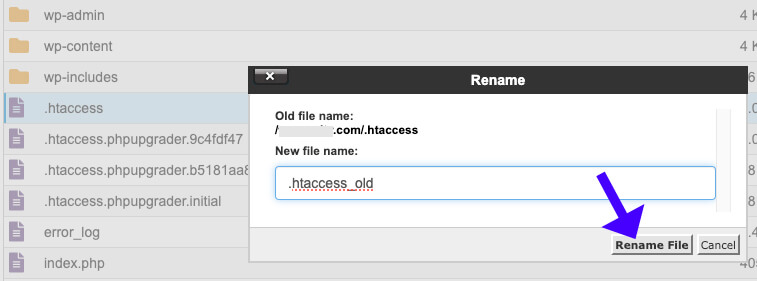
Then, we must create a new .htaccess file inside the root folder by clicking the +File button.
Name the file .htaccess and save it.
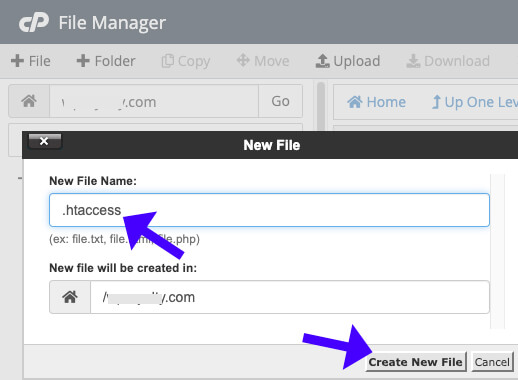
A new empty .htaccess file was added to your WordPress’s root folder, and you’ll need to populate it with default rules.
Therefore, right-click on the file and select Edit.
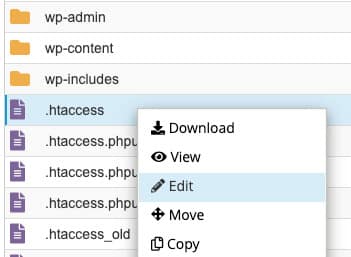
Paste the following code into the code editor and save the file.
# BEGIN WordPress
<IfModule mod_rewrite.c>
RewriteEngine On
RewriteBase /
RewriteRule ^index.php$ - [L]
RewriteCond %{REQUEST_FILENAME} !-f
RewriteCond %{REQUEST_FILENAME} !-d
RewriteRule . /index.php [L]
</IfModule>
# END WordPress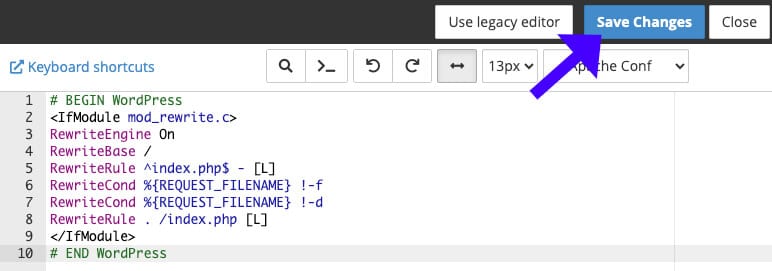
Once saved, visit your website and refresh it to ensure it’s working.
Internal Server Error – Frequently Asked Questions
The generic error message indicates something is wrong with the server, but the exact cause is unclear.
It typically occurs due to server misconfigurations, corrupted files, plugin/theme conflicts, or resource limitations.
It can be if the issue stems from server misconfigurations, outdated software, or resource limitations on the host’s end.
Yes, poorly coded or incompatible plugins often trigger this error.
1. Renaming the .htaccess file. 2. Deactivating plugins and themes. 3. Increasing the PHP memory limit. 4. Re-uploading core WordPress files.
You can access the server via FTP or your hosting control panel.
A minimum of 128M is recommended, but 256M or higher may be necessary for more significant sites.