


When WordPress triggers a critical error, it is usually followed by an email to your admin explaining what caused the issue.
Such an email is vital because it helps us understand and speed up troubleshooting. It leads us directly to the issue, allowing us to use our precious time more productively.
So, our first step is to go to our inbox and look for the email we received from WordPress. Please also check your spam folder if you can’t find it in your inbox.
Enter the email and carefully read the instructions provided by WordPress. A plugin or theme most likely triggered the critical error. In that case, it will show you which plugin caused it.
In addition, the email will provide you with a login link to log in to your WordPress website in recovery mode.
WordPress Recovery Mode is a feature that automatically detects fatal errors, such as plugin/theme conflicts and PHP errors, and offers recovery from them. It enables site admins to log in and repair issues without breaking the website.
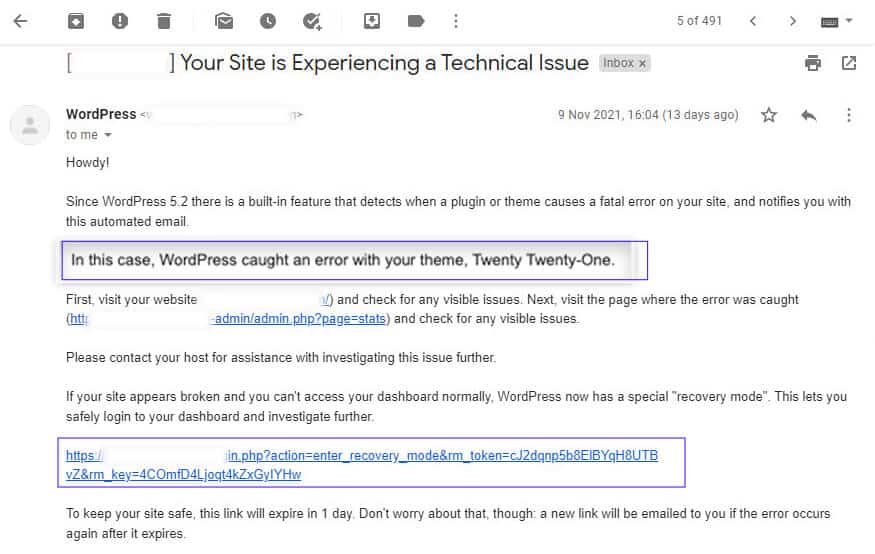
The photo above shows that a function inside the functions.php file of our active theme caused the critical error.
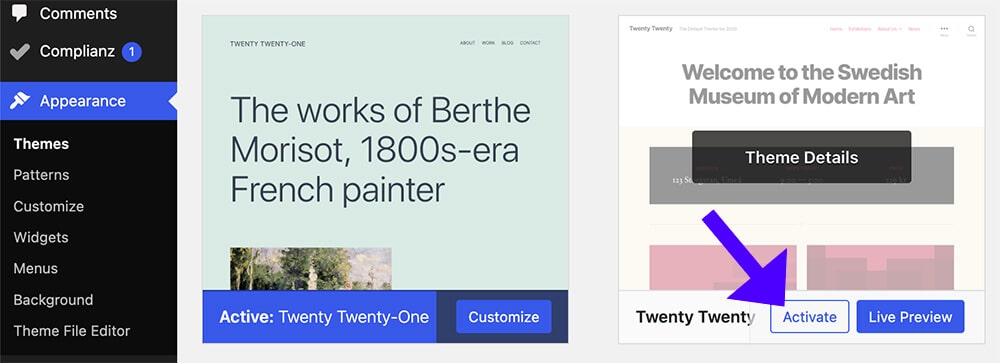
In that case, we must access the Themes screen and activate a theme different from our current one.
So, click on the temporary access recovery mode link in the email to access the backend of WordPress.
Then, navigate to the Appearance -> Themes screen and activate a different theme.
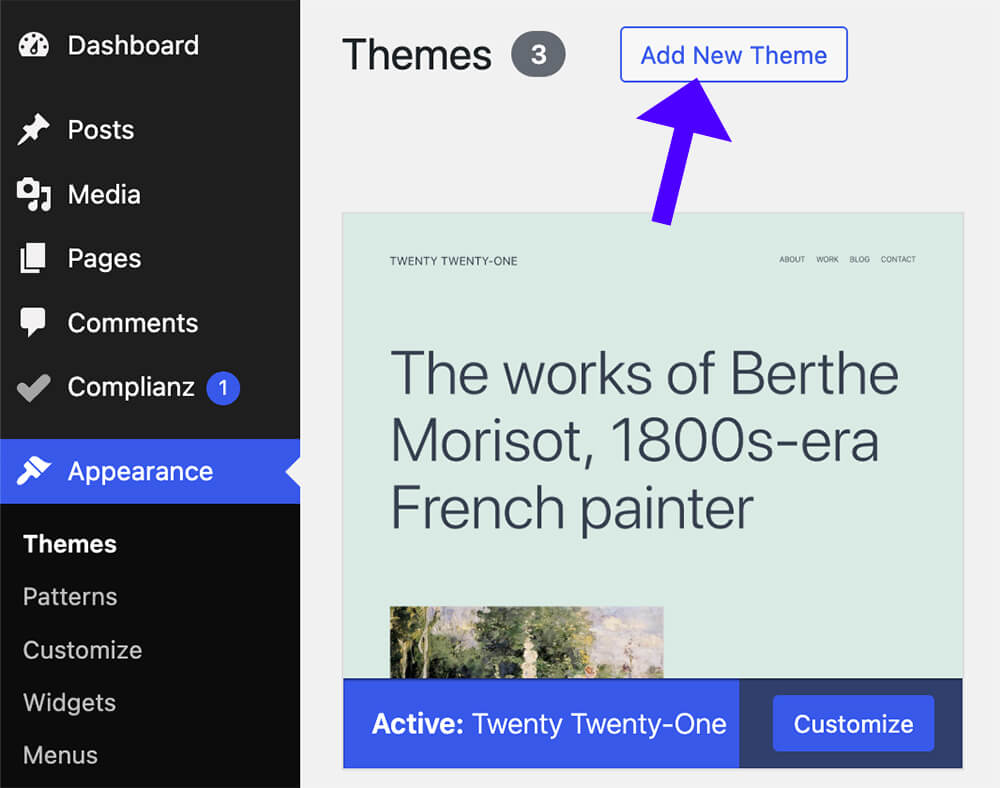
If you don’t have any other theme installed on your WordPress, we will need to install one. Therefore, click the Add New Theme button and choose a different theme to install.
Once you have activated the new theme, click the Exit Recovery Mode link on your Admin bar and revisit your website.
You likely fixed the issue, and your website will work properly.
If it still doesn’t work, wait for another email from WordPress explaining the new issue. You can then follow the steps above to fix it.
However, read the following section if you didn’t get any email in your inbox.
How to Fix the Critical Error Without Email (Manually)
You are not doomed if you don’t receive an email from WordPress or don’t have access to the admin email address.
We can still manually fix the critical error, although it will take longer.
You’ll need to access WordPress files using your hosting company’s FTP software, such as FileZilla or the file manager interface.
We must troubleshoot and determine whether a plugin or theme caused the issue. Let’s start by deactivating all plugins.
Deactivate All Plugins
Once you access the WordPress root folder, navigate to the wp-content folder.
You’ll need to rename the plugins folder to deactivate all the plugins on your website.
Right-click on the plugins folder and click Rename.
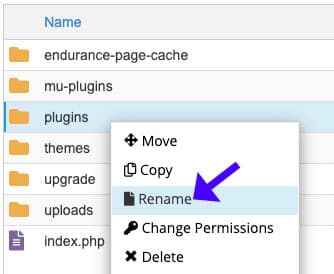
Then, you can rename it anything you like. In our case, we will rename it pluginsDeactivated.
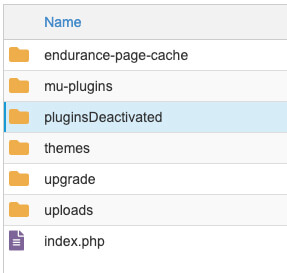
WordPress automatically looks for your plugins inside the plugins folder. However, because we changed its name, WordPress won’t find it and will deactivate all the plugins.
Once you have deactivated all plugins, refresh your website and test if it’s working correctly.
If the website works now, one of the plugins caused the critical error.
In that case, we must determine which plugin caused the error and either delete it, update it, or find an alternative. You can find the faulty plugin by activating each plugin individually until you trigger the error.

If the critical error persists, move on to the second step and restore your theme to default.
Activate the Default Theme
If deactivating the plugin doesn’t fix the critical error, one of the functions in your theme may have caused it.
We must download a copy of your current theme from the WordPress repository to fix that.
Search for your desired theme and click on the Download button.
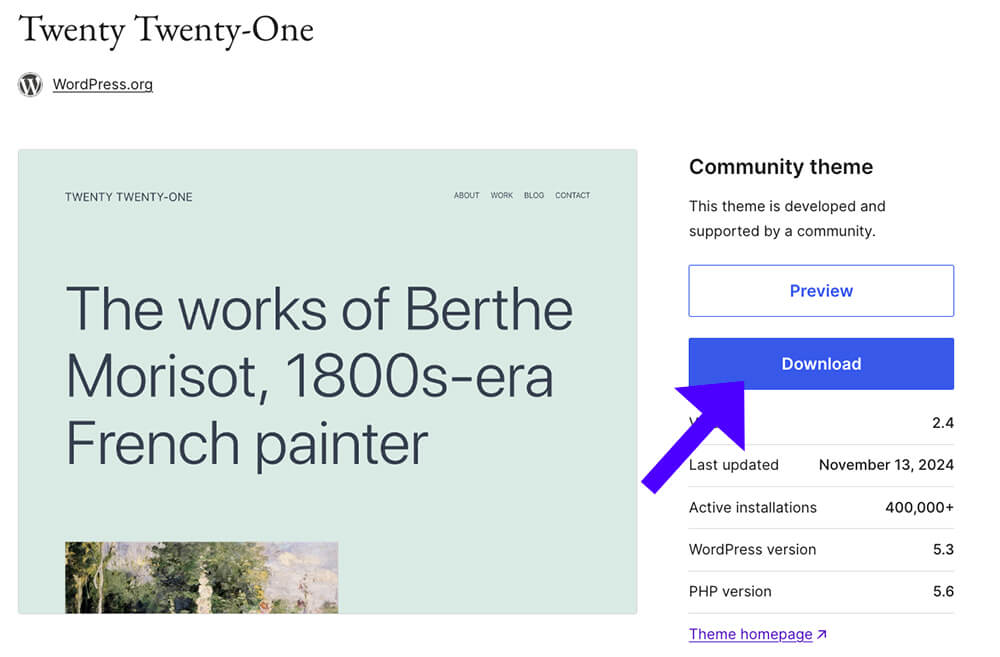
The theme will be downloaded to your local folder in a Zip format. You’ll need to extract it to get the folder with all the files out of it.
Double-click the zip file or right-click it and select Extract or Open.
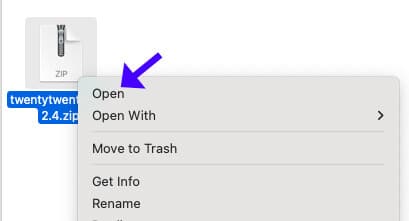
Once you have extracted the theme folder from the zip file, use FTP software to access the themes folder on your WordPress website.
You can find the themes folder inside the wp-content folder (as we showed in the previous step).
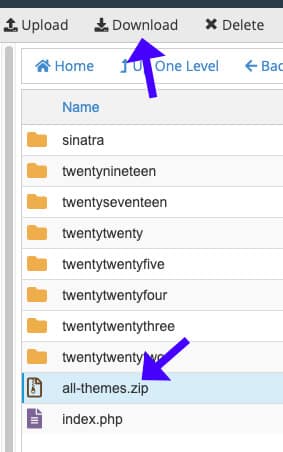
Please enter the themes folder, select all the theme folders, and compress them into a single zip file.
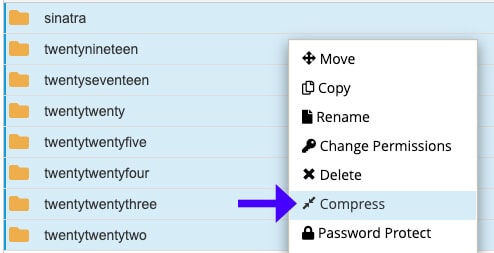
Once zipped, download the compressed file to your computer as a backup.
Then, select them all once again and delete them.
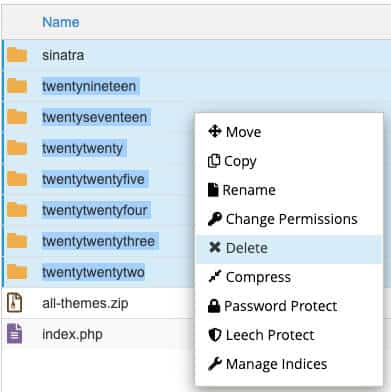
The themes folder will be empty, and no theme will be installed on your WordPress website.
We must now upload the default theme we downloaded earlier to the themes folder.
To do that, click the Upload button and select the folder you extracted from the zip file earlier.
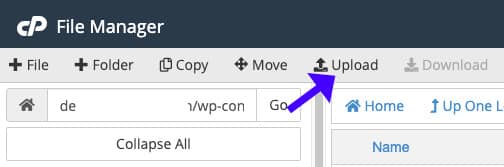
Once uploaded, refresh your website and ensure it’s working correctly.
Critical Error – Frequently Asked Questions
A Critical Error means WordPress can’t work as expected because it has encountered a fatal PHP error. This error is often caused by plugin/theme conflicts, PHP version issues, memory exhaustion, or corrupted files.
Some fixes are possible, but plugin conflicts are the most probable cause. Thus, turning off conflicting plugins via FTP or phpMyAdmin and switching to a default theme should resolve the error.
WordPress Recovery Mode is a feature that automatically detects when a fatal error has occurred, such as plugin/theme conflicts or PHP errors, and attempts to recover from them. It allows site admins to log in and fix issues without breaking the website.
WordPress sends an email with a unique recovery link if it detects a critical error. You can also manually enter: https://yourwebsite.com/wp-login.php?action=enter_recovery_mode
Disable plugins manually via FTP (wp-content/plugins/), Rename the active theme folder in wp-content/themes/, and Reinstall WordPress core files (except wp-content/ and wp-config.php).
A new update may be incompatible with WordPress or other plugins. To restore to the previous version, use WP Rollback or restore a backup.