Everything you need to know about the

Stuck Elementor Screen

What is causing it, and how can it be prevented and fixed?

Elementor stuck screen error

What's Causing The Stuck Elementor Screen?

Elementor is one of the most popular web page builder plugins for WordPress.

Because our design relies heavily on this plugin, the Elementor screen getting stuck and not loading can significantly slow down our business’s development.

Therefore, we aim to fix the Elementor stuck screen quickly and get back to building our website.

Elementor can get stuck and fail to load for various reasons, often related to compatibility or resource issues. Some of the most common reasons are:

  • Plugin or theme conflicts.
  • Insufficient server resources include low PHP memory limit, low max execution time, and limited server resources.
  • Poor Javascript code.
  • Corrupted Elementor or theme files.
  • Browser cache and cookies.

One of the reasons above is most likely stopping Elementor from loading, but it’s not limited to those only.

How to prevent the Stuck Elementor Screen from happening in the future?

To prevent the Elementor screen from getting stuck, you must install the latest plugin version on your WordPress website.

Elementor often updates its plugin to match the latest trends and best code practices.

Once you have installed the latest version, you must ensure your server is configured to the minimum required of the plugin.

To increase PHP memory and execution time, contact your host provider or use our One-time fix service.

Plugin conflicts

Elementor may conflict with other plugins installed on your WordPress website.

Misconfigured server

Ensure your server has the minimum requirements to run Elementor.

Browser cache

The browser may still show you the old cached version.

Did you know...

In most cases, plugin conflicts are why the Elementor screen is stuck and not loading.

How to fix the Stuck Elementor Screen?

Plugin conflicts are one main reason preventing the Elementor screen from loading.

Therefore, we must deactivate all active plugins (except Elementor) to see if the problem was solved and if it can now load.

Here are the steps to fix the Elementor stuck screen (not loading).

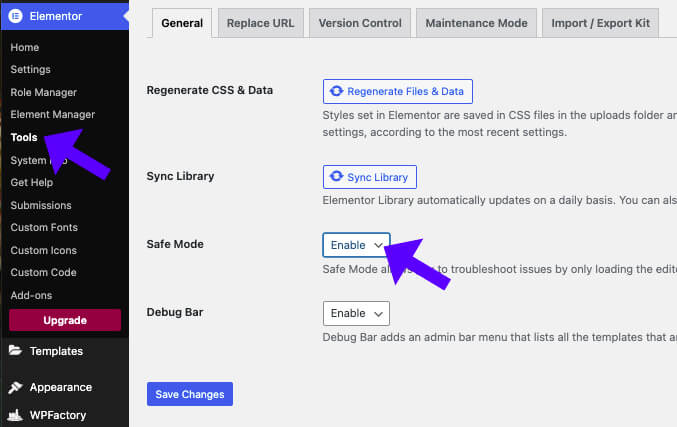
  1. Elementor safe mode

    Enable Elementor safe mode. You can do so by navigating to Elementor -> Tools and changing the safe mode to EnableEnable safe mode Elementor

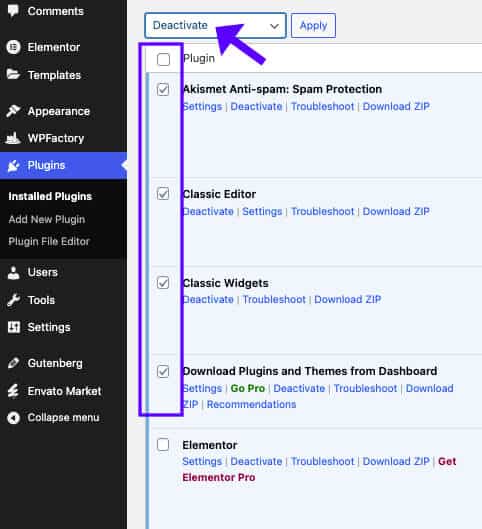
  2. Deactivate all plugins

    Go to the Plugins page, check all the plugins (except Elementor), and bulk deactivate them.Deactivate all plugins

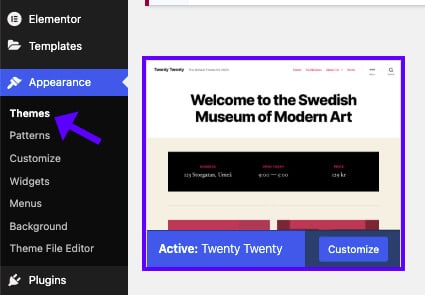
  3. Switch to the default theme.

    Navigate to the Themes page (Appearance -> Themes) and switch to the default theme.Activate the default WordPress theme

  4. Test Elementor

    Reload the Elementor editor screen to ensure it’s working and you can edit your page.

  5. Troubleshooting

    Change back to your desired theme and ensure Elementor is still loading. If it is, the theme should not cause Elementor to become stuck.

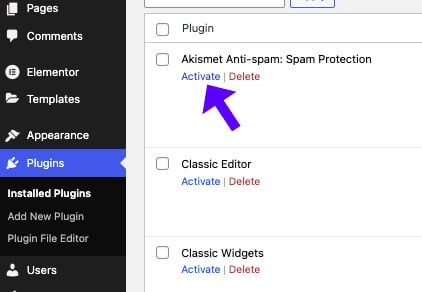
  6. Activate plugins individually

    Back to the Plugins screen, activate each plugin individually while loading Elementor after each activation.Activating plugins individually

  7. Find the faulty plugin.

    Once the Elementor screen got stuck after activating a specific plugin, you found the problematic plugin.

  8. Update the plugin

    Then, update the faulty plugin or find an alternative.
Other fixing solutions can include clearing your browser’s cache and increasing the PHP memory limit and execution time.

Modifying the PHP server configuration is more for advanced and experienced users and shouldn’t be approached by all.

It’s best to hire us to configure the server for you or contact your hosting company.

Elementor Scree Is Stuck – Frequently Asked Questions

Why is Elementor stuck on the loading screen?

This usually happens due to plugin conflicts, theme issues, server resource limits, or JavaScript errors. Turning off conflicting plugins and increasing server resources often helps.

How do I enable Safe Mode in Elementor?

To turn on the Elementor safe mode, go to WordPress Dashboard > Elementor > Tools > Safe Mode.Enable safe mode Elementor
Why is the Elementor editor not loading after an update?

Updates can sometimes cause incompatibility issues with themes or plugins. Try deactivating conflicting plugins, updating them individually, and regenerating CSS files (Elementor > Tools > Regenerate CSS).

Does browser cache affect Elementor loading issues?

Yes. Old cache files can prevent Elementor from loading correctly. Try clearing your browser cache and cookies, turning off any browser extensions that might interfere, and using an incognito window.

Can a CDN or security plugin block Elementor from loading?

Cloudflare’s Rocket Loader, Wordfence, and some firewall rules can block Elementor’s scripts. Please disable Cloudflare’s Rocket Loader and temporarily turn off firewall/security plugins.

How do I check if JavaScript errors prevent Elementor from loading?

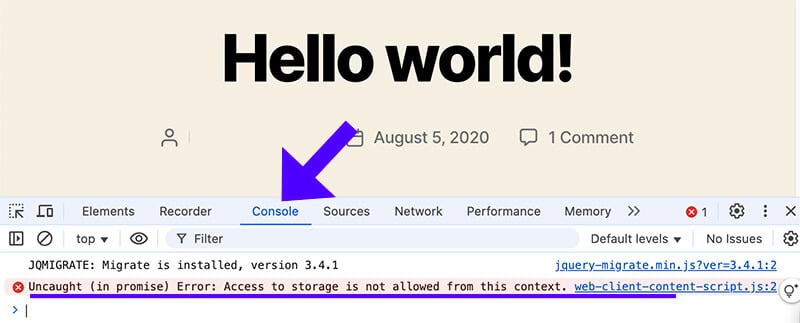
Open the Developer Console (F12 > Console tab in Chrome). Look for red error messages. Then, turn off any conflicting scripts or plugins causing the issue.Error in browser console log
Enable safe mode

Navigate to Elementor -> Tools and enable the safe mode.

Deactivate all plugins

From the Plugins screen, bulk deactivate all plugins

Find the problematic plugin

Activate each plugin individually to find which prevents Elementor from loading.

Fixing it yourself sounds too complicated?

Let us fix the Stuck Elementor Screen for you!

Get the Stuck Elementor Screen fixed in two different ways:

Single Purchase

A single purchase of Stuck Elementor Screen fix.

$39

Maintenance Plans

The Stuck Elementor Screen fix is included in our maintenance plans.
Here are a few tips from us before you leave

Practical tips, examples, and best practices to keep your WordPress site safe.

Your website will thank us, you welcome :)