


As discussed above, the error of establishing a database connection happens because the server (website) cannot connect with the database.
WordPress requires the database name, username, password, and server to establish a successful connection. Any data entered wrong will prevent a successful connection between the server and the database.
The most common reason is that the wrong credentials are stored in the wp-config.php file.
To fix the error of establishing a database connection error, we will need to enter the correct database credentials into the wp-config.php file.
// ** Database settings - You can get this info from your web host ** //
/** The name of the database for WordPress */
define( 'DB_NAME', 'DB_NAME_GOES_HERE' );

/** Database username */
define( 'DB_USER', 'DB_USER_GOES_HERE' );

/** Database password */
define( 'DB_PASSWORD', 'DB_PASSWORD_GOES_HERE' );

/** Database hostname */
define( 'DB_HOST', 'localhost' );
Step #1: Grab the required database information
To access the database information, log in to your hosting provider. (In our example, we will use HostGator, but the process is very similar for other hosting companies.)
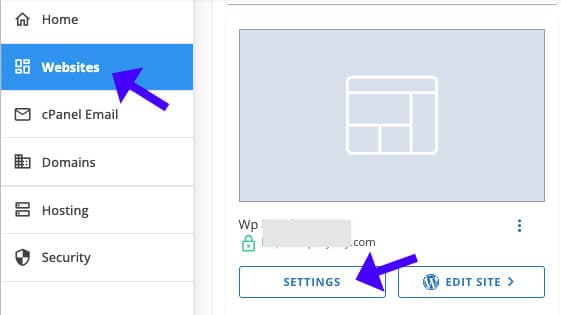
In the Websites tab, click on the Setting button of your desired website.
Then, navigate to the Advanced tab and scroll down to the Databases section.
There, you’ll have the first and second required information, the database name, and the username.
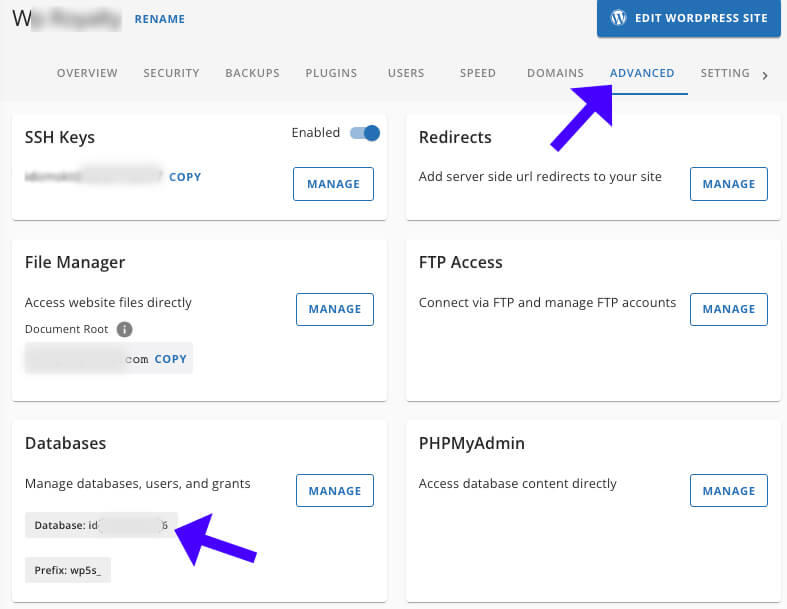
Next, we will need our database password. Therefore, click on the Manage button (shown in the photo above) to view the users list for this database.
Look for the username under the users’ list, and click the Change Password button.

On the following screen, change your database password, then copy and paste it into a notepad. That is the username’s password; we need it in the next step.
Step #2: Populate the information in the wp-config.php file
Once we have all the relevant elements information, we must enter it into the wp-config.php file.
To access the wp-config.php file, you can use FTP software or your hosting company’s file manager interface.
Open the wp-config.php file and look for the database connecting section (the code block above).
Enter the collected data from the step above and populate it into the right area.
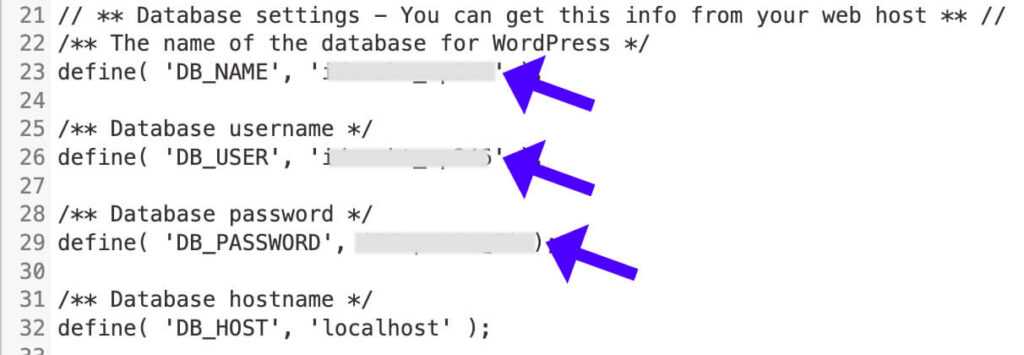
Once you’ve finished, remember to save the file and reload your website. If you do this correctly, your website will work.
Additional ways to fix the error of establishing a database connection error
In most cases, the steps above will fix the establishment of a database connection error. However, if the problem persists, there are other potential causes.
With most WordPress hosting, the database host is localhost; we don’t need to change the define( 'DB_HOST', 'localhost' ); value.
However, with some high-performance hosting providers, the database host is stored elsewhere.
In that case, you must ask your hosting provider for the hostname. Once you have it, replace the localhost value in the code above with the actual hostname.
Frequently Asked Questions About Error Establishing a Database Connection
This error occurs when WordPress cannot connect to the database. The system cannot retrieve or store the information required to load the website. Common reasons include incorrect database credentials, server downtime, or corrupted database files.
High traffic can overwhelm the database server, especially on shared hosting plans with limited resources. This error may appear when the server cannot handle multiple database requests simultaneously. Upgrading to a higher hosting plan or using caching solutions can help prevent this.
Add define('WP_ALLOW_REPAIR', true) to the wp-config.php file to repair a corrupted database. Then, visit http://yourdomain.com/wp-admin/maint/repair.php and choose “Repair Database“
You can verify database credentials by testing them with a simple PHP script. Create a file (e.g., testdbconnection.php) and include this code:<?php $connection = mysqli_connect('hostname', 'username', 'password', 'database'); if (!$connection) { die('Connection failed: ' . mysqli_connect_error()); } echo 'Connected successfully'; mysqli_close($connection); ?>
Replace hostname, username, password, and database with your actual database details from wp-config.php. Upload the file to your server and open it in a browser. If it connects successfully, your credentials are correct.
Yes, poorly coded or incompatible plugins and themes can cause excessive queries or conflicts, leading to connection errors.