


In most cases, the white screen happens because a script has exhausted your server’s memory limit and doesn’t have enough memory to finish.
WordPress will quit and won’t execute the script. Instead, it will show you a blank screen.
Increasing the server’s memory limit will solve the problem in that case.
Fix #1: Increase PHP Memory Limit
Check the Current Memory Limit
To check the current memory limit allocated to your WordPress website, navigate to Tools -> Site Health and go to the Info tab.
Expand the Server tab and look for the PHP memory limit value there.
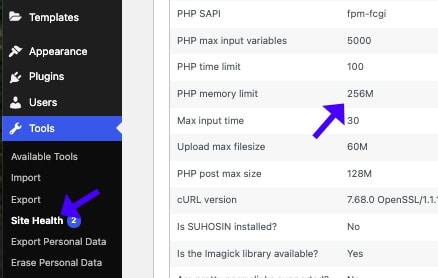
If your PHP memory limit value is less than 128M, you should increase it, especially if you have a heavy website requiring many resources.
Change the Memory Limit Function
There are several ways to increase WordPress’s allocated memory limit, and I’ll show you the most popular one.
The first step is to access your wp-config.php file. You can see how to access the file by reading the previous section.
Then, search for the /* That’s all; stop editing! Happy publishing. */ line, and paste the following code above it.
define( 'WP_MEMORY_LIMIT', '256M' );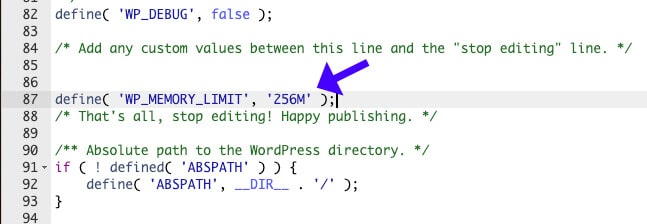
Save the file and refresh the website to see if it’s working now.
You can also change the number of the memory limit to 512M if the 256M didn’t help.
Additionally, read our more in-depth tutorial on how to increase memory limit.
If increasing the PHP memory limit didn’t solve the white screen of death issue, move on to the next fix.
Fix #2: Deactivate All Plugins
If you experience a white screen of death after updating a plugin, the solution is to deactivate or delete it completely.
However, if you update multiple plugins and you don’t know which plugin caused the issue, we will need to deactivate them all.
To achieve that, access your WordPress root folder and enter the wp-content folder.
Look for the plugins folder and right-click on it to rename it.
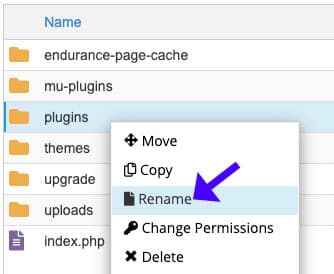
You can change its name to anything you like. In our example, we will change it to pluginsDeactivated.
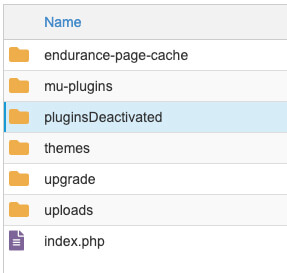
By default, WordPress searches the plugins folder to access the plugins installed on your website. It automatically deactivates all the plugins if it can’t find the folder.
Go back and refresh your website after you rename the plugins folder.
If a plugin caused your website to display a blank white screen, it should be fixed now because all plugins are inactive.
Log in to your website and rename the pluginsDeactivated folder back to plugins.
Then, from inside the plugins screen, activate the plugins one by one until you trigger the white screen of death again.

When you see the white screen of death after activating a specific plugin, that is the one that caused the issue. Please deactivate or delete it.
Fix #3: Restore to the Default Theme
Poorly coded or heavy scripts can also trigger the fatal white screen of death error.
If you inject your scripts into the functions.php file of your theme, there is a big chance that one of them is causing the issue.
The solution here is to restore your active theme to its default state.
First, access the themes folder, right-click on your active theme, and click Compress.
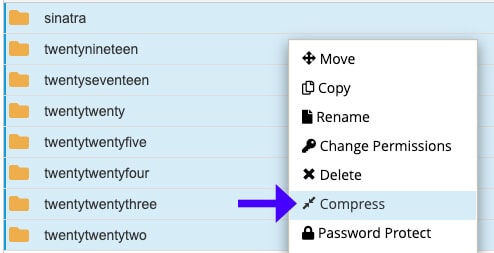
After the compression, click the new zip-compressed file and select download.
This will download a copy of your theme to your local drive. If needed, we can use it later as a backup. After downloading the zip file, you can delete both the zip file and the theme’s folder from your server.
Then, please search for your theme in the WordPress repository and download it to your computer.
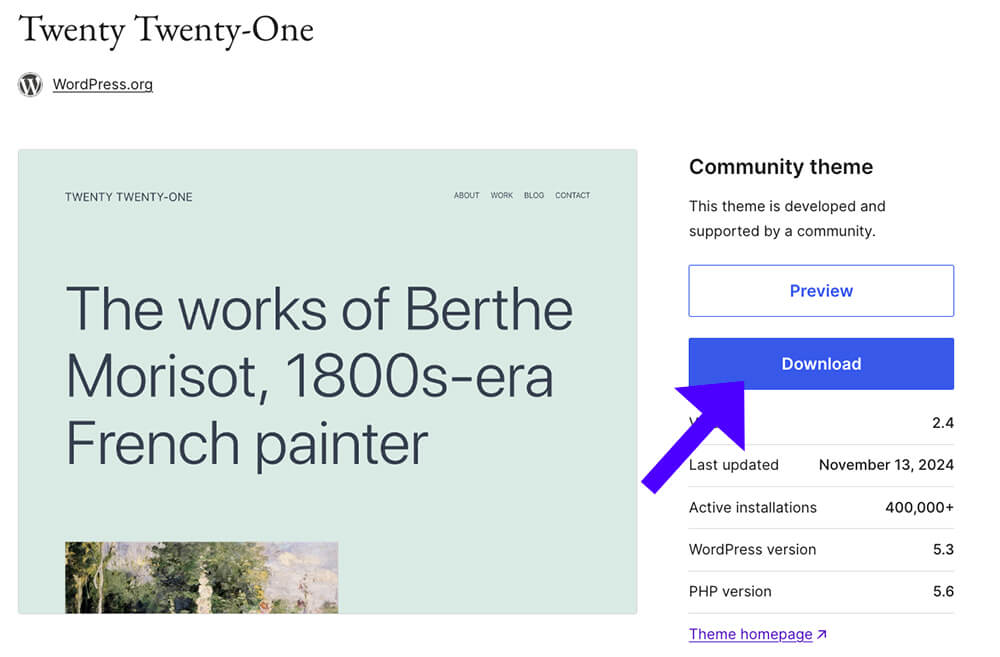
Extract the default theme zip file we downloaded from the repository and upload its folder to the themes folder.
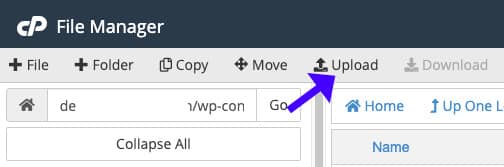
Go back to your website and refresh it. If the theme caused the white screen, it is now fixed.
However, you must still add the functions (code snippets) in the modified theme we compressed earlier.
Therefore, copy and paste each function into the new theme’s functions.php file.
Please refresh the website after each paste to see if the white screen is triggered.
When you see the white screen again, the latest code snippet causes it. Therefore, you’ll need to fix the code or delete it completely.
Tip: Instead of pasting the functions or code snippets into your functions.php file, use a custom plugin such as Pluginception.
A dedicated plugin like Pluginception will automatically proof-check and deactivate your codes before they trigger an error.
White Screen Of Death – Frequently Asked Questions
WSOD usually happens due to PHP errors, memory limit exhaustion, plugin/theme conflicts, or corrupted files.
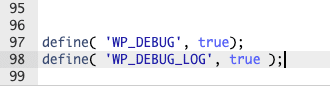
WordPress suppresses errors by default. You can enable debugging by adding define('WP_DEBUG', true); define('WP_DEBUG_LOG', true); to the wp-config.php file.
It depends. If both are blank, it could be a core or server issue. If only the front end is blank, it’s likely a theme or plugin issue.
Use FTP or your hosting file manager to rename the plugins or themes folder inside wp-content/ to disable them.
Yes. A faulty or incompatible plugin or theme can trigger WSOD. Deactivating them via FTP can help identify the culprit.
This may be due to a specific plugin, a corrupted database entry, or memory issues.
1. Regularly update WordPress, themes, and plugins. 2. Test updates on a staging site before applying them. 3. Use error logging (wp_debug.log) to catch issues early.