

Everything you need to know about the

Briefly Unavailable for Scheduled Maintenance Error in WordPress

What is causing it, and how can it be prevented and fixed?

schedule maintenance error

What's Causing The Briefly Unavailable for Scheduled Maintenance Error in WordPress?

Have you ever encountered the ‘Briefly unavailable for scheduled maintenance’ error in WordPress?

This problem typically occurs when updating the WordPress core, plugins, or themes.

Your site might get stuck in maintenance mode and not finish the update.

This article shows how to quickly fix the ‘Briefly unavailable for scheduled maintenance’ error.

We’ll also explore the reasons for this error and how to avoid it in the future.

It’s important to understand that the WordPress maintenance mode page is not an error but simply informational.

WordPress downloads the necessary files to your server during the update process, unpacks them, and then applies the update shortly after.

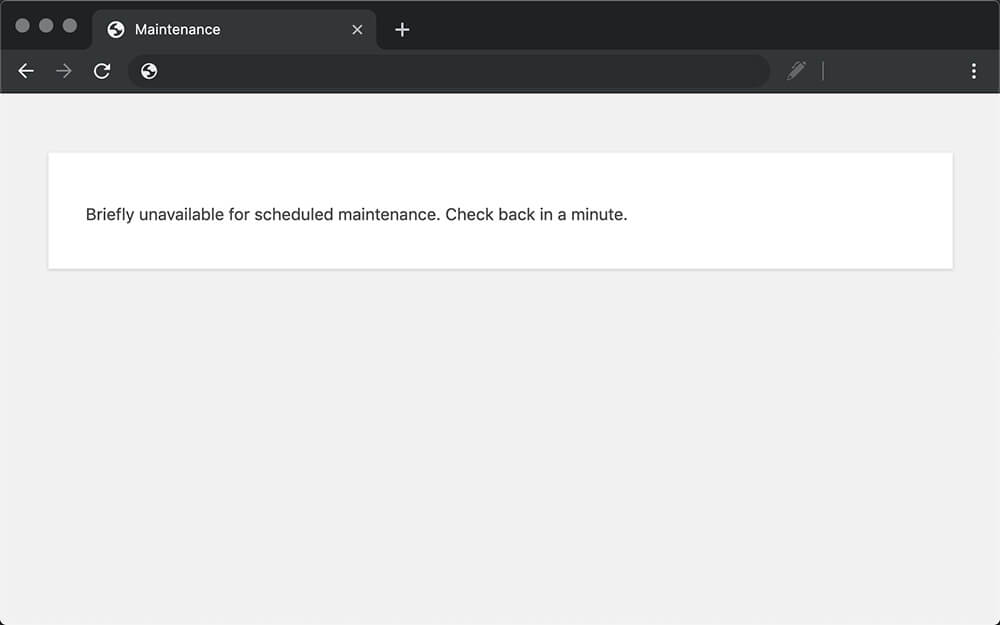
WordPress manages your site and displays the message ‘Briefly unavailable for scheduled maintenance. Check back in a minute during updates.

This maintenance mode notification appears when WordPress creates a temporary .maintenance file in your website’s root folder.

Usually, this message lasts only a few seconds if everything goes as planned.

After a successful update, WordPress deletes the maintenance file and exits maintenance mode.

However, if the update script times out—often due to a slow response from the hosting server or insufficient memory—WordPress may fail to take your site out of maintenance mode.

Therefore, your WordPress website will continue to display the maintenance mode notice and require you to fix it manually.

If you encounter this issue, don’t worry. Just follow this guide to resolve it quickly.

How to prevent the Briefly Unavailable for Scheduled Maintenance Error in WordPress from happening in the future?

The ‘Briefly unavailable for scheduled maintenance’ error can sometimes be caused by a slow server response or limited memory on your web hosting setup.

Please check a few things to avoid this issue. One option is to update plugins and themes individually. While we aim to be helpful, speed can often be compromised.

When you click the ‘Update’ button for all your plugins at once, WordPress updates them staggered.

Even a minor conflict in the connection can lead to errors and slow down your site’s maintenance. Therefore, consider a more methodical approach.

Update your plugins and themes one at a time. If a problem arises, identifying the culprit and responding quickly will be easier.

If updating individually leads to maintenance mode errors, it may indicate that your current hosting plan lacks the resources your site requires.

Upgrading to a higher plan or a reliable provider like WPEngine can reduce the chances of encountering this error.

When working with businesses, it is also advisable to consider managed WordPress hosting.

These providers optimize WordPress sites for speed and reliability, making them an excellent choice for a smoother experience.

Update was interrupted

WordPress didn’t delete the maintenance file.

Limited memory size

PHP's limited memory size can cause WordPress to stay stuck.

Slow connection

A slow internet connection can cause WordPress to get stuck in maintenance mode.

Did you know...

WordPress automatically creates a .maintenance file inside the root folder and deletes it after a successful update. WordPress will stay in maintenance mode if the file has not been deleted.

How to fix the Briefly Unavailable for Scheduled Maintenance Error in WordPress?

WordPress is stuck in maintenance mode because its root folder still has the .maintenance file.

Therefore, to ‘free’ WordPress and restore its default cycle, we must delete the .maintenance file.

However, because our website’s backend is in maintenance mode, we can’t access it. Therefore, we must use FTP (or the hosting file manager) to access and manually delete the file from the root folder.

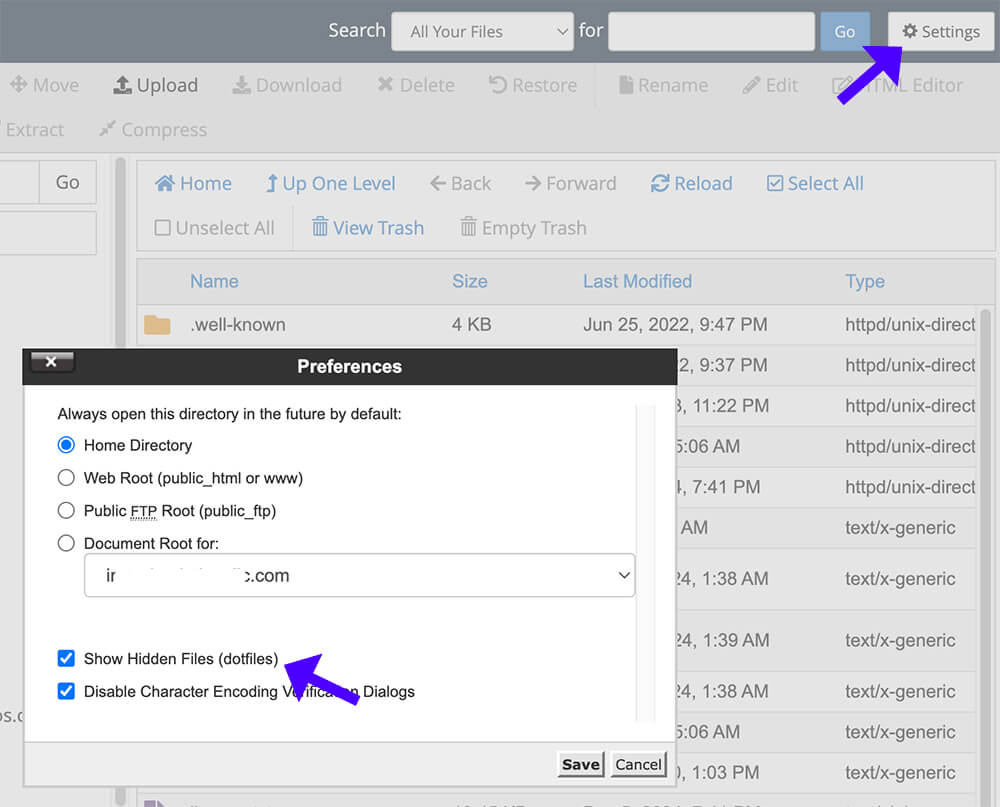
Once logged in, make sure you can see hidden files. To enable this option, click the Settings button at the top right corner, select Show Hidden Files, and click Save.
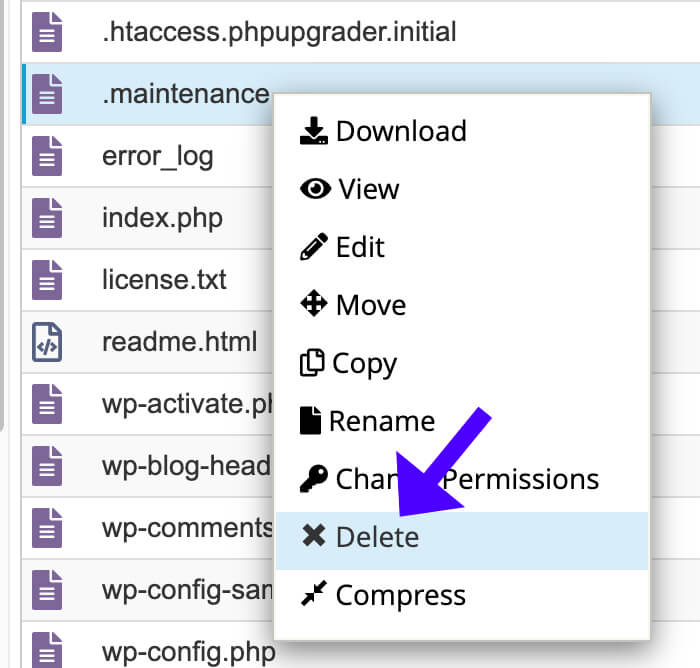
Then, look for the .maintenance file in the list, right-click on it, and click delete.
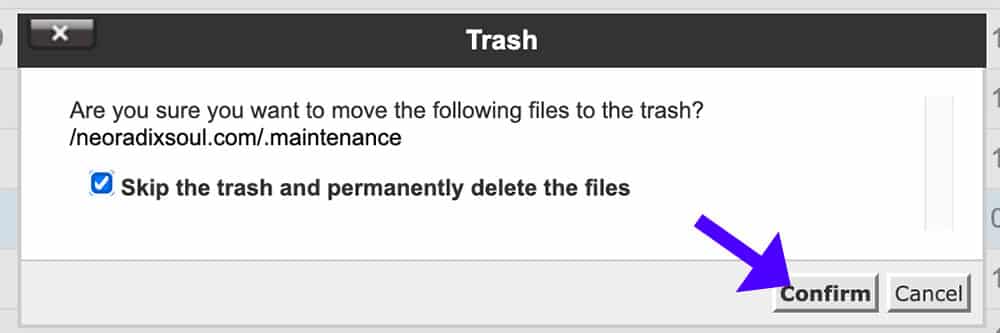
If prompt, check the Skip the trash, permanently delete the files option, and click confirm.
After you delete the file, refresh your website and ensure it is loaded and out of maintenance mode.

Optional: Additional step if the fix above didn’t work

The tutorial above did fix WordPress from being stuck in maintenance mode.

However, if you still see the ‘Briefly unavailable for scheduled maintenance’ message after refreshing the website, you must follow one more step.

While still in the WordPress root folder, look for and edit the wp-activate.php file.
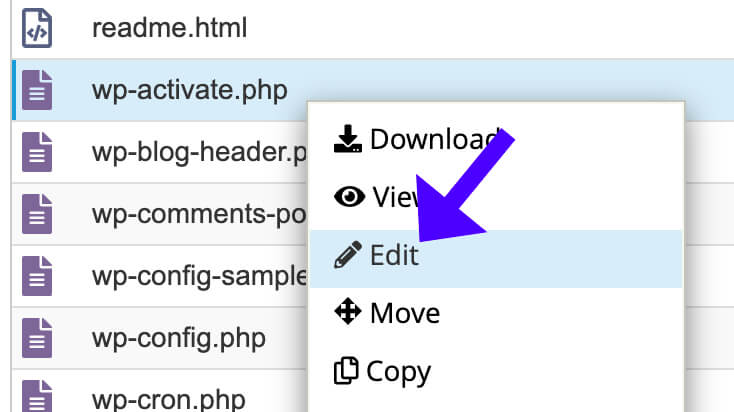
There, look for define ('WP_INSTALLING', true) and change it to define ('WP_INSTALLING', false).
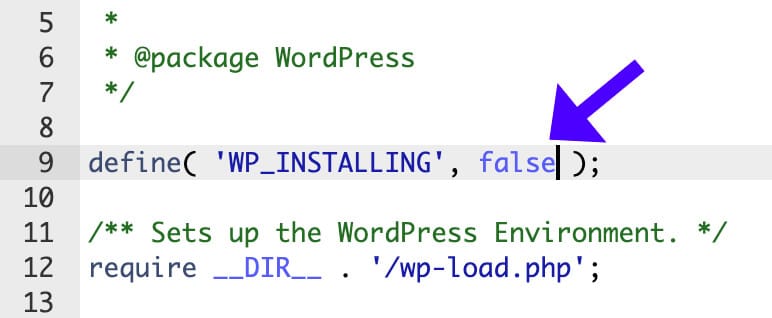
WordPress temporarily sets WP_INSTALLING to true during installation.

WordPress’s define('WP_INSTALLING', true ) constant indicates that the site is in the installation or update process.

It should automatically change it to false after running the updates, but sometimes it fails.

Changing the WP_INSTALLING value to false combined with the fix from the last section should fix WordPress maintenance mode.

Briefly Unavailable for Scheduled Maintenance Error – Frequently Asked Questions

What is the “Briefly unavailable for scheduled maintenance” error in WordPress?

This message appears when WordPress updates plugins, themes, or core files. It should disappear automatically once the update is completed.

Why is my site stuck in maintenance mode?

WordPress may not exit maintenance mode properly if an update is interrupted (e.g., due to a slow connection, timeout, or server issue).

How does WordPress enable maintenance mode?

WordPress creates a hidden file called .maintenance in the root directory. When this file exists, visitors see the maintenance message.

What if I can’t find the maintenance file?

Ensure hidden files are visible in your FTP client or hosting file manager.

Can a failed plugin or theme update cause this error?

If an update fails, WordPress might not remove the .maintenance file, causing the site to get stuck in maintenance mode.

Can I customize the maintenance mode message?

Yes, create a custom maintenance.php file in the wp-content folder with your message. WordPress will use this instead of the default message.

Access WordPress root folder

Use FTP to access WordPress root folder.

Show all files

Be sure to display all files, including hidden files.

Delete the maintenance file.

Look for and delete the .maintenance file.

Fixing it yourself sounds too complicated?

Let us fix the Briefly Unavailable for Scheduled Maintenance Error in WordPress for you!

Get the Briefly Unavailable for Scheduled Maintenance Error in WordPress fixed in two different ways:

Single Purchase

A single purchase of Briefly Unavailable for Scheduled Maintenance Error in WordPress fix.

$39

Maintenance Plans

The Briefly Unavailable for Scheduled Maintenance Error in WordPress fix is included in our maintenance plans.
Here are a few tips from us before you leave

Practical tips, examples, and best practices to keep your WordPress site safe.

Your website will thank us, you welcome :)