

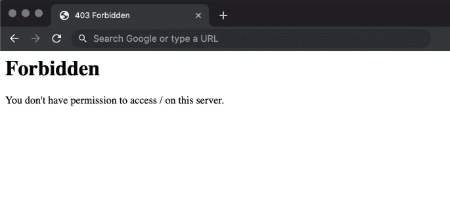

So, there are multiple ways we can solve this error.
One way is to deactivate all the plugins on your website and see if that helps. You can learn how to turn off all plugins by reading the article on fixing the critical error.
Another feasible solution is to clear your browser’s cache. The connection is not a private error article; we explained how to do this in great detail.
Please refer to the two articles above as your first attempts to fix the error. If neither method above worked, we will explore a couple more methods now.
Create a New. htaccess File
In this section, we will learn how to delete our current .htaccess file and generate a new one.
Apache servers use the .htaccess file to distribute configuration files for directory-by-directory configuration changes.
WordPress uses this file to alter the way Apache serves files from its root and subdirectories. Most notably, WP modifies this file to handle permalinks.
If you encounter the 403 forbidden error screen in WordPress, your current .htaccess file is likely corrupted.
The corrupted file is interfering with the regular operation of your website because it contains incorrect server configurations.
Generating a new .htacces file is an easy, straightforward process.
Our first step is to delete our current .htaccess file and check if the 403 forbidden problem was solved successfully. If we solve the problem, we will generate a new .htaccess file.
To delete your corrupted .htaccess file, access your website using FTP software, such as Filezilla or the hosting provider’s file editor interface.
Then, look for the .htaccess file in the root folder of your WordPress files and download it to your computer as a backup.
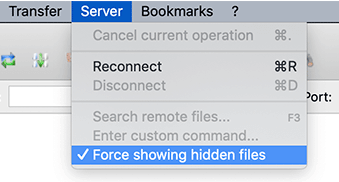
Note: files that start with a dot (.) are hidden. Therefore, if you can’t find it, show hidden files. You can display hidden files by going to Server > Force showing hidden files.
Once downloaded to your computer, right-click on the file again and click delete.
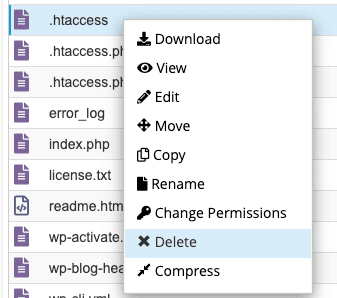
After deleting the file, revisit your website and ensure you can now access it and that the 403 forbidden error is no longer present.
If the website loads correctly, the .htaccess file you deleted was corrupted and broke your website.
Removing the file solved the issue, which is excellent. Now, we need to generate a new .htaccess file.
To create a new .htaccess file, go to the WordPress dashboard -> Settings -> Permalinks.
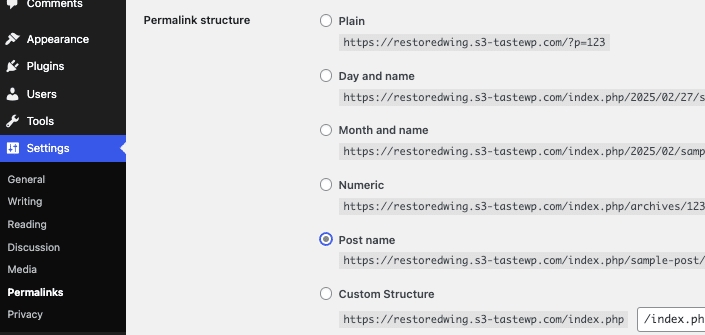
There, choose your preferred Permalink structure (Post name is recommended), and click on Save Changes.
This will automatically create and store your new .htaccess file in your WordPress root folder.
If deleting the .htaccess file didn’t fix the problem, try changing the permission for the WordPress folders and files.
Change Permission for the WordPress Folders and Files
By default, the folders and files in WordPress are set with permissions that enable you to read, write, and execute (based on the consent).
All folders have permissions of 744, 755, and 775, while files have permission of 644 and 640.
Folders default permission is set to 755, which enables members and users to read and write.
A folder with a 775 permission allows group members to execute and make changes.
Files, on the other hand, have permissions of 644, which allow owners to read and write and other users to read-only.
The 403 forbidden error can occur when file permissions are incorrect. It tells your web server that you cannot access the files.
Changing the permissions on a file yourself can have serious repercussions and shouldn’t be taken lightly. If you don’t feel confident doing it yourself, get our One-Time fix, and let us do it for you.
If you feel confident enough to change the permission, please first access your WordPress root folder with FTP software.
Then, right-click on WordPress folders and select File Permissions.
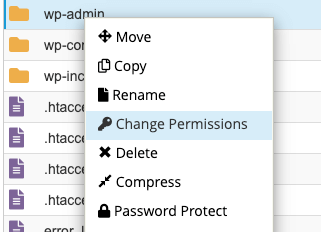
In the file permission dialog box, set the numeric value to 755 or 744, and check Recurse into subdirectories and apply to directories-only options.
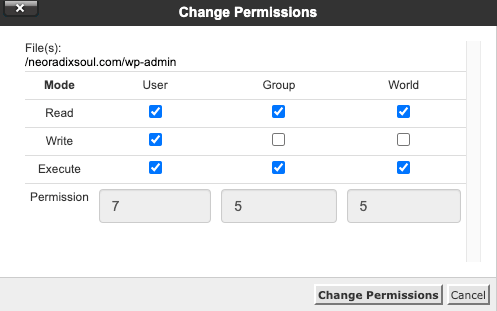
After clicking OK, the FTP client will set the permissions for all the subdirectories in that folder.
Once finished, move on to handle the permissions for the files.
Unlike the folders, set the numeric value for the files to 640 or 644. Remember to select the Recurse into subdirectories again, but Apply to files-only options this time.
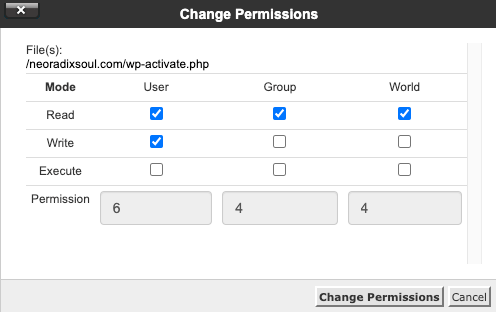
Once you set the permissions to the folders and files, revisit your website and ensure you solved the 403 forbidden error.
403 Forbidden Error – Frequently Asked Questions
Yes. If search engines encounter a 403 error while crawling your pages, they may deindex them. It is crucial to fix this error quickly.
Yes, poorly coded or security-sensitive plugins and themes can block access to specific files or pages, triggering a 403 error.
A security plugin blocking access, IP restrictions in .htaccess or a firewall rule, and File permissions incorrectly set are all possible reasons.
Contact them to check if ModSecurity or other security settings are blocking your access, if Your IP is blocked, and if A server misconfiguration is causing the issue.