

Everything you need to know about the

500 Internal Server Error

What is causing it, and how can it be prevented and fixed?

Internal Server Error

What's Causing The 500 Internal Server Error?

The “Internal Server Error” in WordPress is a generic error message indicating that something has gone wrong on the server, but the server cannot pinpoint the exact issue. This error typically results in a 500 Internal Server Error message being displayed to users.

It’s unclear what exactly is causing the Internal Server Error, but some of the most common reasons are:

  • Corrupted .htaccess File – Misconfigurations or errors in the .htaccess file can lead to server issues.
  • Plugin or Theme Conflicts – A plugin or theme incorrectly coded or conflicts with others can trigger this error.
  • Exceeding PHP Memory LimitWordPress may require more memory than the server is allocated.
  • Corrupted Core Files – Files in the WordPress installation, such as wp-admin or wp-includes, might be corrupted.
  • Improper File Permissions – Incorrect permissions on WordPress files and folders can cause the server to fail.
  • Server Configuration Issues – Problems with server settings, such as PHP or Apache misconfigurations, can also cause this error.
  • Database Issues – Corruption in the WordPress database or improper database connection settings can lead to this issue.

The list above includes the most common causes, but it’s not limited to those only.

How to prevent the 500 Internal Server Error from happening in the future?

Preventing an “Internal Server Error” in WordPress involves proactive measures to ensure your site is optimized, secure, and configured correctly. Here are some thumb guidelines you should follow to prevent the error from happening:

  • Use a reliable hosting provider.
  • Always keep WordPress (and the plugins and themes) up-to-date.
  • Avoid unnecessary custom rules in the .htaccess file.

Implementing these practices can significantly reduce the risk of encountering an Internal Server Error on your WordPress site.

Corrupted .htaccess File

Using custom .htaccess rules instead of the default WordPress .htaccess rules.

Poorly coded plugins / themes

A plugin or theme that is not properly coded or conflicts with others can trigger this error.

Database connection

Corruption in the WordPress database or improper database connection settings can lead to this issue.

Did you know...

It’s hard to pinpoint exactly what is causing the internal server error in WordPress, and there can be many causes.

How to fix the 500 Internal Server Error?

There are many reasons for the 500 internal errors in WordPress, but we will tackle this issue because a corrupted .htaccess is usually the leading cause.

WordPress uses the server configuration .htaccess file to control the redirects of your website.

A corrupted .htaccess file can create an infinite redirect loop, which causes WordPress to ‘give up’ and display an internal error.

The quickest way to fix the internal error or conflict is to generate a new .htaccess file.

To do that, navigate to Settings -> Permalink -> and click the Save Changes button without changing anything.
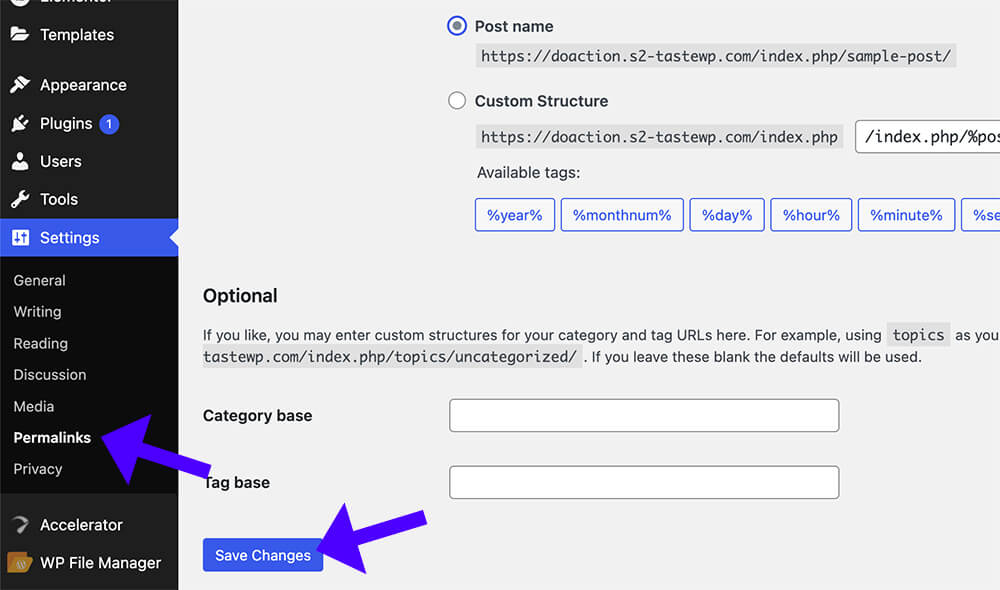
Save permalinks wordpress

If you don’t have access to your WordPress website’s backend, you’ll need to access it using FTP or your hosting company’s file manager interface.

The .htaccess file is located in WordPress’s parent directory.

First, back up the .htaccess file by renaming it to something else.
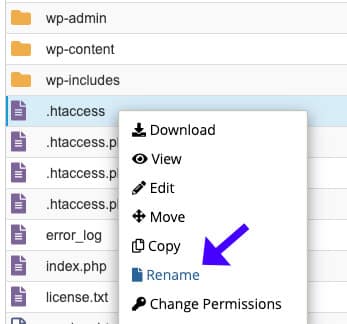
Right click rename htaccess file

A simple change to .htaccess_old will do the trick. We can always return to it and rename it to its original name if necessary.
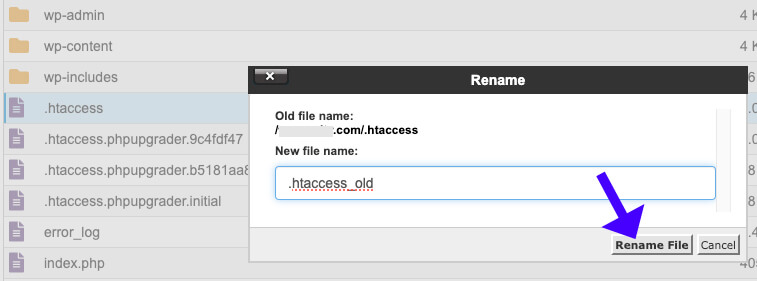
Rename old htaccess file

Then, we must create a new .htaccess file inside the root folder by clicking the +File button.

Name the file .htaccess and save it.
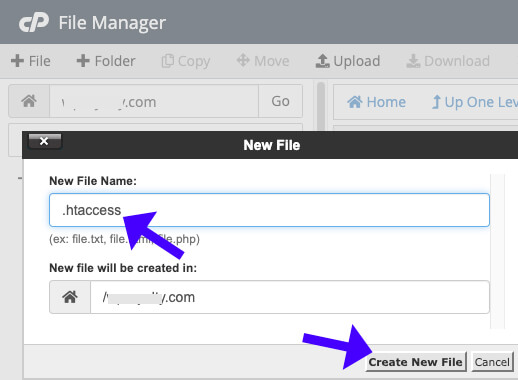
Create new htaccess file

A new empty .htaccess file was added to your WordPress’s root folder, and you’ll need to populate it with default rules.

Therefore, right-click on the file and select Edit.
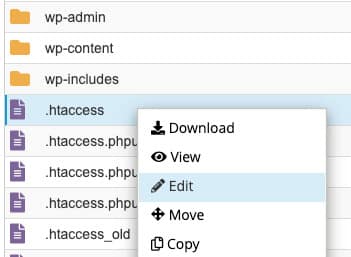
Right click edit htaccess file

Paste the following code into the code editor and save the file.

# BEGIN WordPress
<IfModule mod_rewrite.c>
RewriteEngine On
RewriteBase /
RewriteRule ^index.php$ - [L]
RewriteCond %{REQUEST_FILENAME} !-f
RewriteCond %{REQUEST_FILENAME} !-d
RewriteRule . /index.php [L]
</IfModule>
# END WordPress
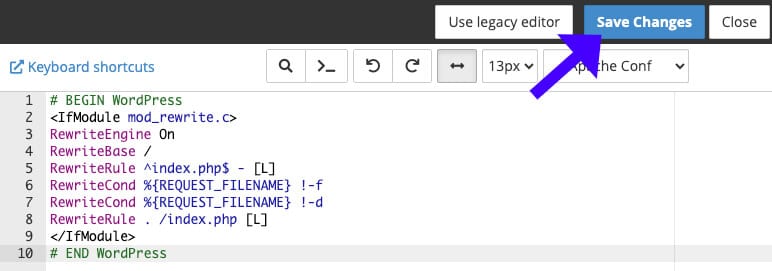
Save new htaccess file

Once saved, visit your website and refresh it to ensure it’s working.

Internal Server Error – Frequently Asked Questions

What is the Internal Server Error in WordPress?

The generic error message indicates something is wrong with the server, but the exact cause is unclear.

What is causing the 500 Internal Server Error?

It typically occurs due to server misconfigurations, corrupted files, plugin/theme conflicts, or resource limitations.

Is the Internal Server Error related to my hosting provider?

It can be if the issue stems from server misconfigurations, outdated software, or resource limitations on the host’s end.

Can plugins or themes cause an Internal Server Error?

Yes, poorly coded or incompatible plugins often trigger this error.

How do I fix the Internal Server Error?

1. Renaming the .htaccess file. 2. Deactivating plugins and themes. 3. Increasing the PHP memory limit. 4. Re-uploading core WordPress files.

Can I fix the internal server error without accessing the WordPress admin dashboard?

You can access the server via FTP or your hosting control panel.

How much PHP memory does WordPress need to avoid this error?

A minimum of 128M is recommended, but 256M or higher may be necessary for more significant sites.

Deactivate the corrupted .htaccess file

Rename the file to deactivate it.

Create a new .htaccess file

Use FTP to create a new .htaccess file.

Use the default .htaccess rules

Copy the code above and paste it into the new .htaccess file.

Fixing it yourself sounds too complicated?

Let us fix the 500 Internal Server Error for you!

Get the 500 Internal Server Error fixed in two different ways:

Single Purchase

A single purchase of 500 Internal Server Error fix.

$39

Maintenance Plans

The 500 Internal Server Error fix is included in our maintenance plans.
Here are a few tips from us before you leave

Practical tips, examples, and best practices to keep your WordPress site safe.

Your website will thank us, you welcome :)