

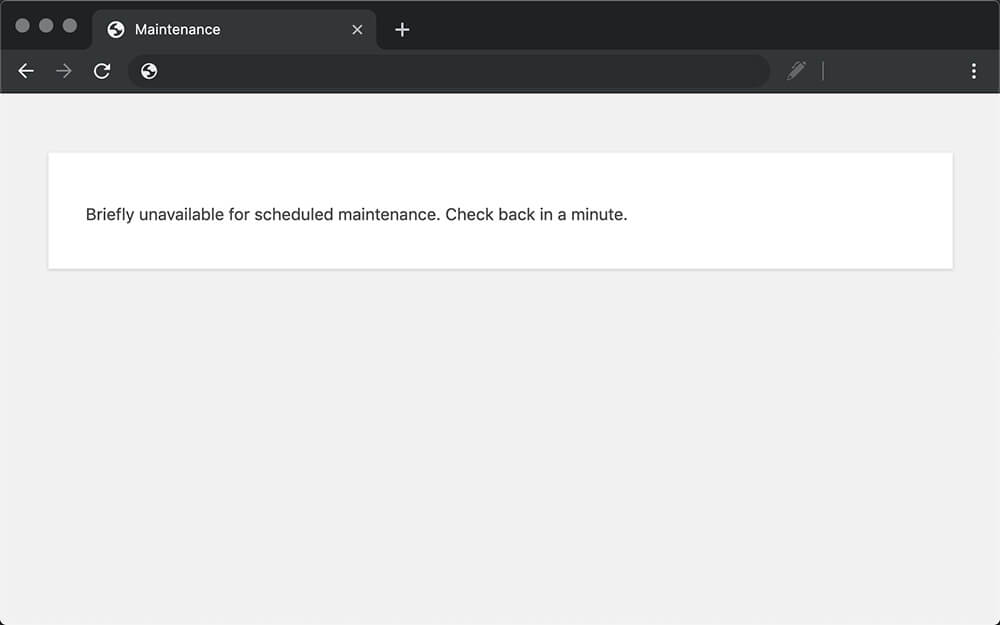

WordPress is stuck in maintenance mode because its root folder still has the .maintenance file.
Therefore, to ‘free’ WordPress and restore its default cycle, we must delete the .maintenance file.
However, because our website’s backend is in maintenance mode, we can’t access it. Therefore, we must use FTP (or the hosting file manager) to access and manually delete the file from the root folder.
Once logged in, make sure you can see hidden files. To enable this option, click the Settings button at the top right corner, select Show Hidden Files, and click Save.
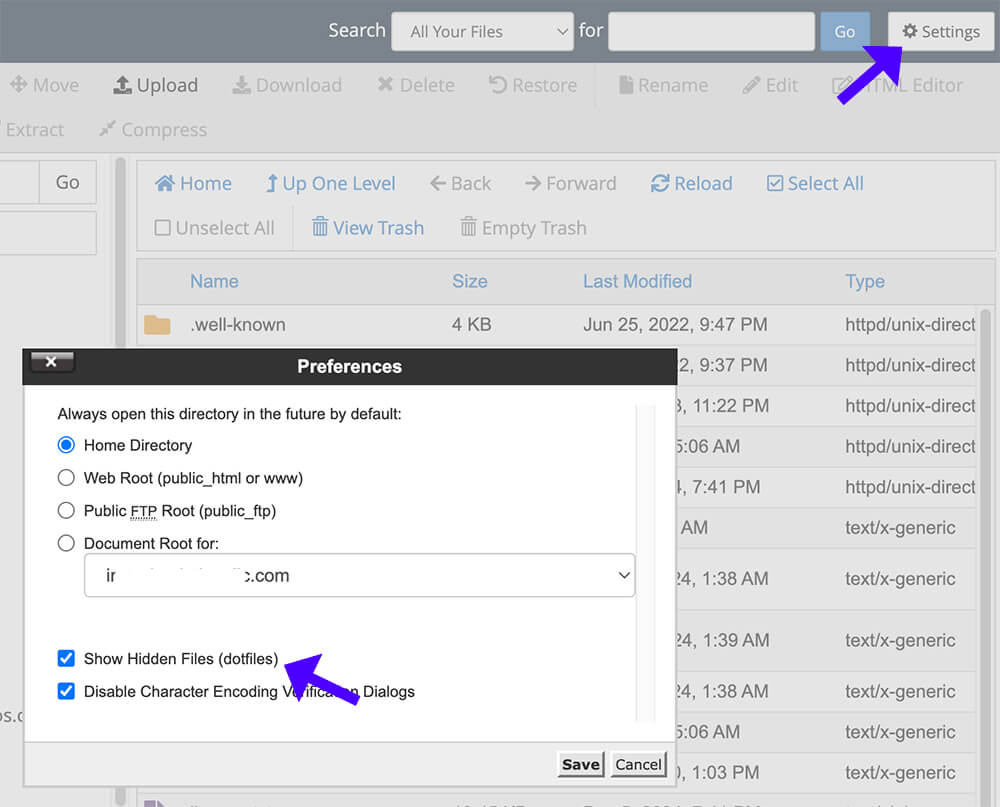
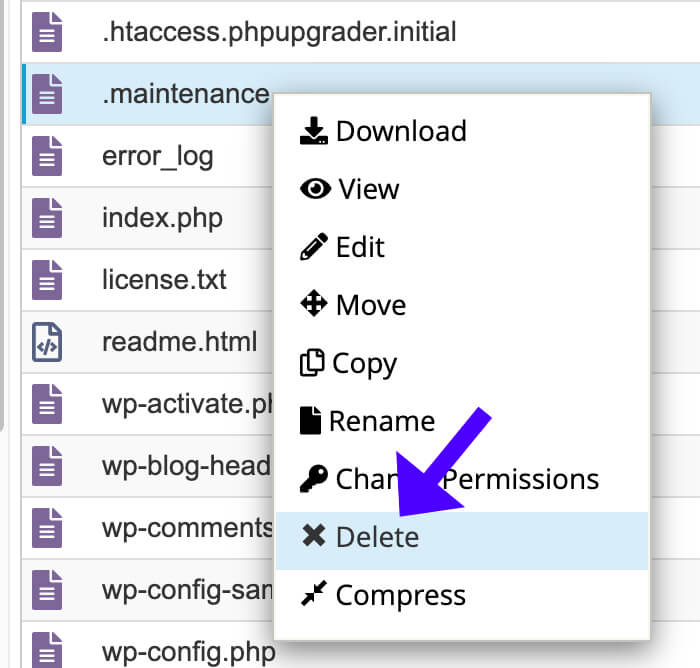
Then, look for the .maintenance file in the list, right-click on it, and click delete.
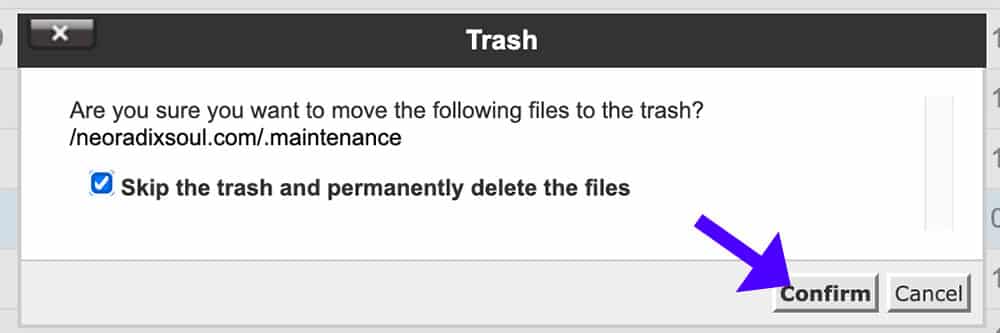
If prompt, check the Skip the trash, permanently delete the files option, and click confirm.
After you delete the file, refresh your website and ensure it is loaded and out of maintenance mode.
Optional: Additional step if the fix above didn’t work
The tutorial above did fix WordPress from being stuck in maintenance mode.
However, if you still see the ‘Briefly unavailable for scheduled maintenance’ message after refreshing the website, you must follow one more step.
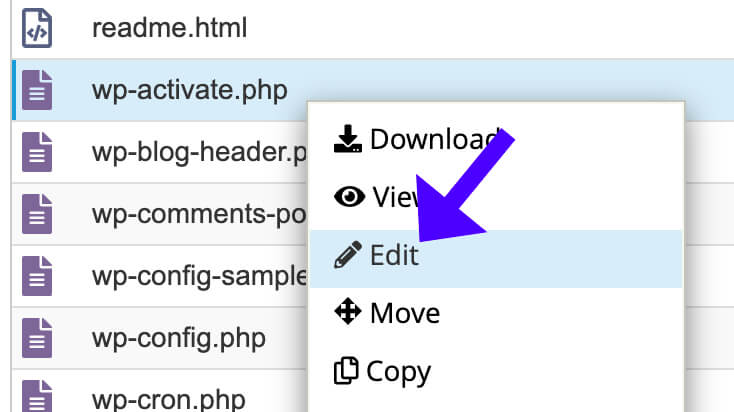
While still in the WordPress root folder, look for and edit the wp-activate.php file.
There, look for define ('WP_INSTALLING', true) and change it to define ('WP_INSTALLING', false).
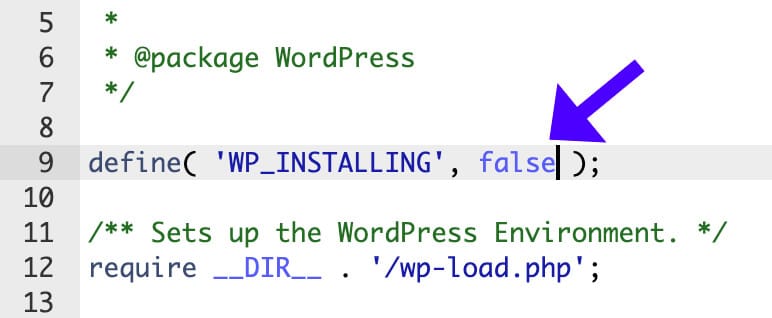
WordPress temporarily sets WP_INSTALLING to true during installation.
WordPress’s define('WP_INSTALLING', true ) constant indicates that the site is in the installation or update process.
It should automatically change it to false after running the updates, but sometimes it fails.
Changing the WP_INSTALLING value to false combined with the fix from the last section should fix WordPress maintenance mode.
Briefly Unavailable for Scheduled Maintenance Error – Frequently Asked Questions
This message appears when WordPress updates plugins, themes, or core files. It should disappear automatically once the update is completed.
WordPress may not exit maintenance mode properly if an update is interrupted (e.g., due to a slow connection, timeout, or server issue).
WordPress creates a hidden file called .maintenance in the root directory. When this file exists, visitors see the maintenance message.
Ensure hidden files are visible in your FTP client or hosting file manager.
If an update fails, WordPress might not remove the .maintenance file, causing the site to get stuck in maintenance mode.
Yes, create a custom maintenance.php file in the wp-content folder with your message. WordPress will use this instead of the default message.