
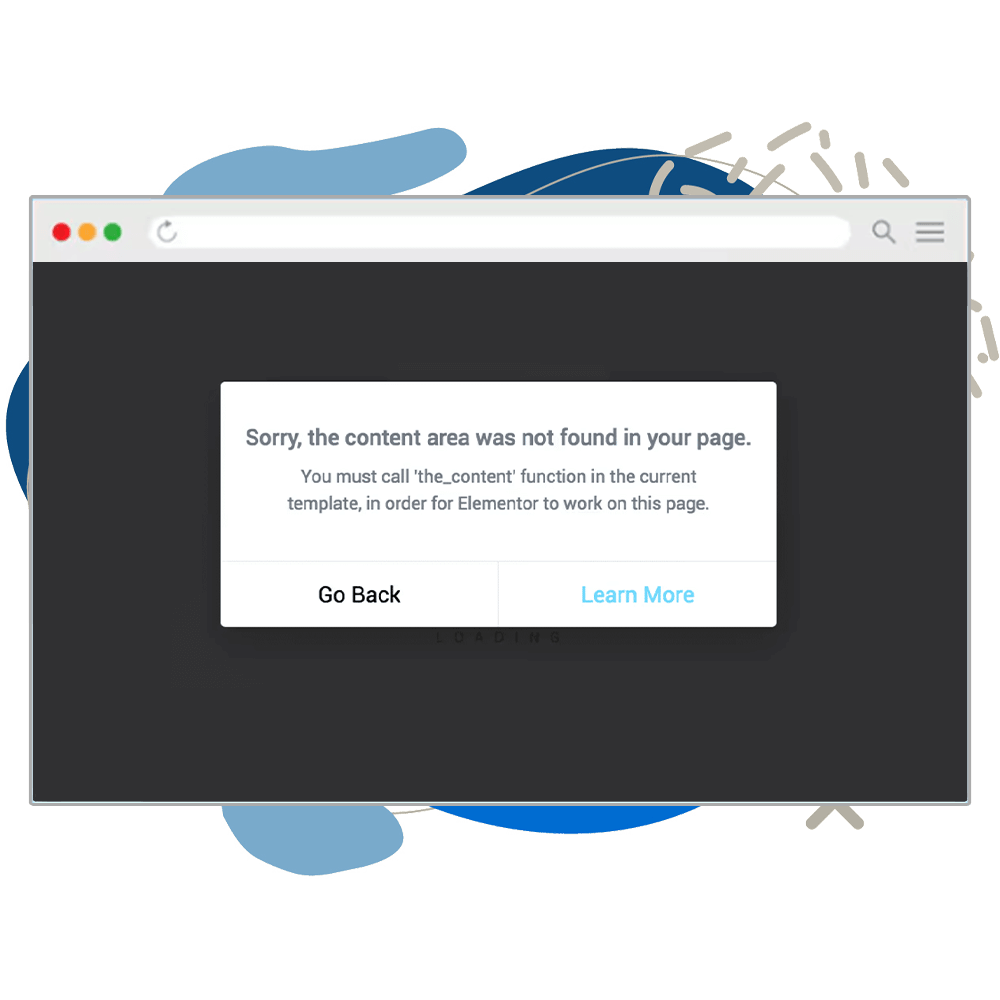

Everything you need to know about the

Sorry, the Content Area Was Not Found in Your Page Elementor Error

What is causing it, and how can it be prevented and fixed?

Content was not found error

What's Causing The Sorry, the Content Area Was Not Found in Your Page Elementor Error?

Elementor is one of WordPress’s best page builder plugins and the most popular.

The almost unlimited design options and user interface are drawing millions of users to make it their first choice.

However, Elementor can only be helpful when we can use it to edit the page.

If you are trying to edit a page with Elementor but are getting the error ‘Sorry, the content area was not found in your page’ you have come to the right place.

Let’s explore why you can’t edit a page with Elementor and how to fix it.

The ‘Sorry, the content area was not found in your page’ error message commonly happens when you try to edit an archive page that displays your latest blog posts.

It happens when making changes to a page in an archive without generating or using an archive template.

Archive pages are not actual stand-alone pages; they are a collection of posts generated by a loop function.

They automatically generate pages showcasing posts organized by category, tag, author, date, or custom post type.

You can edit and style archive pages, but only through template files.

Using a Non-Completable Theme

Another reason that Elementor cannot find the page’s content because you are using an incompatible theme.

Although it is unlikely, it can still be the reason.

An incompatible theme may be missing the_content() function, which is essential for Elementor to display the editor.

I said it’s unlikely because most themes work flawlessly with Elementor, but your theme may be outdated or custom-made.

In that case, there is a high chance that your template file is missing the_content();.

Missing the wp_reset_postdata() Function

Archive templates use loop functions to loop between your posts and display them in order.

The While function in PHP will loop through all your posts until finished.

Elementor will display the ‘content wasn’t found’ error when the While loop does not include the wp_reset_postdata() function.

A WordPress function called wp_reset_postdata() resets the global $post variable after executing a custom query using WP_Query.

This guarantees that later template functions (such as the_title() and the_content()) refer to the original primary query rather than the modified query.

This usually happens when editing or creating custom template files. The importance of the wp_reset_postdata() is often overlooked, which can prevent Elementor from loading correctly.

Different Website and Home Page URLs

Another common reason Elementor can’t find the content is that your website and homepage URL differ. Permalink confusion can cause this error.

For instance, If you have a category with the slug “cars,” use that as the slug for your page. Use a different name for your new page.

You can’t always change your permalink structure and edit using Elementor because specific servers don’t allow you to write to the .htaccess file.

In case of a permalink structure conflict, Elementor will try to load the editor screen, but if it is unsuccessful, it will throw the error message ‘Sorry, the content area was not found in your page.’

Missing the_content() function

Your theme or template is missing the_content() function.

Missing the wp_reset_postdata() Function

Add the wp_reset_postdata() in a while statement.

Different Website and Home Page URLs

A misconfigured permalink structure can cause this error.

Did you know...

Most likely, the Elementor ‘Sorry, the content area was not found on your page’ error message is caused by your theme missing the_content() function.

How to fix the Sorry, the Content Area Was Not Found in Your Page Elementor Error?

A few reasons can prevent Elementor from finding the content; there are different ways to fix this. It all depends on what is preventing the plugin from finding the content in the first place.

In this section, we will explore a few possible fixes. I will list them, starting with the easiest.

Fix Your Website Slug

In this first fix, we will edit the .htaccess file and redirect visitors to a WordPress server. Although this may sound complicated, it isn’t.

From your WordPress backend, navigate to Settings -> Permalinks.

In the permalinks structure section, select the first option, Plain, and save the changes.
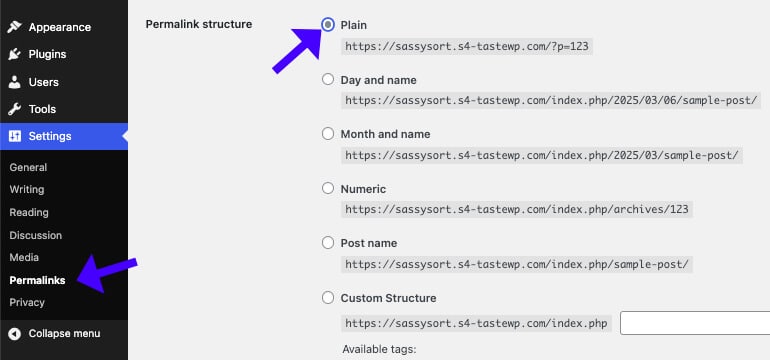
Once saved, try reloading Elementor to see if the problem was solved.

If that helped, you’re done. Go ahead and edit your website. If Elementor still can’t find the content, try the next fix.

Create an Archive Template

If you see that Elementor can’t find the content while trying to edit an archive page, it’s not a coincidence.

As mentioned above, WordPress automatically creates archive pages from template files, which cannot be modified individually.

You can still customize archive pages in WordPress, but it needs to be edited as a template.

Creating page templates is one of the biggest strengths of Elementor Pro.

You must use the Elementor Pro theme builder function to create a template for archive pages in WordPress.

From inside your WordPress dashboard, navigate to Templates -> Theme Builder.
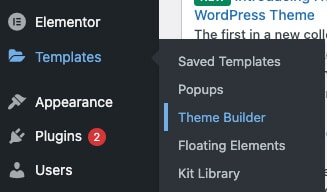
You can create templates for many page types on the theme builder screen. Please click on the Archive link from the left of the list and then on Add New.
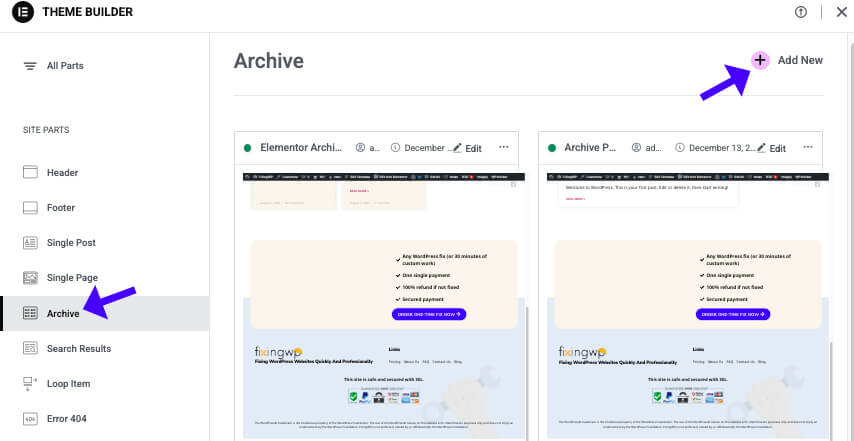
You can edit the Archive page template according to your preferences (remember to add a loop widget) or choose a pre-made template from their options.

When finished, publish the template for all archive pages or only selected ones.

Visit one of your archive pages to see what it looks like and adjust the design according to your needs.

Add the_content() to a Custom Template File.

If Elementor can’t find the content on a template file you or your web developer created manually, it’s probably because the_content() function is missing.

The template must have the_content() to ensure the Elementor editor can edit the page.

Open the custom template (usually in your child’s theme’s templates folder) and look for the “Loop.”

“The Loop” is the primary WordPress mechanism for retrieving and showing posts on a page. It is a PHP construct that produces the content of the searched posts after iterating over them.
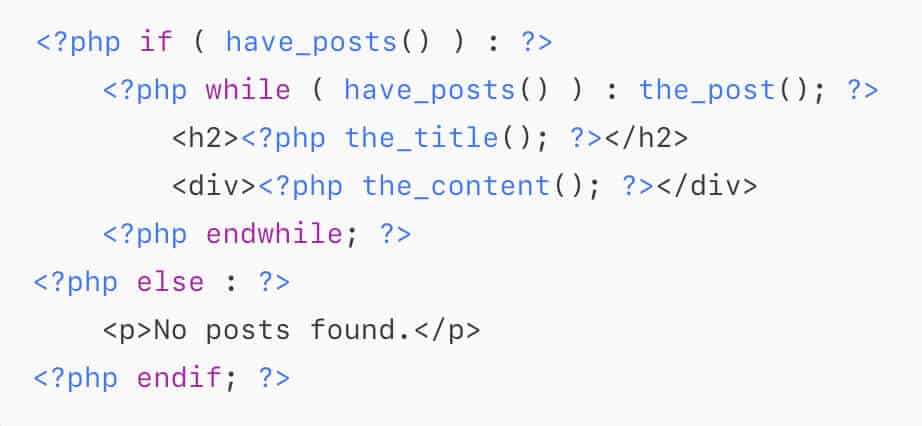
Ensure the template file contains the_content() anywhere in the template; if it doesn’t, add it to your desired position. If it already exists but Elementor still can’t find the content, please move the_content() inside the “loop.”

Save the changes and try to load Elementor to see if that solves the problem.

Add the wp_reset_postdata() Function at the Bottom of a while Statement

As mentioned, the wp_reset_postdata() resets the global $post variable after executing a custom query using WP_Query.

To return the global $post variable to its pre-custom query state, you must call wp_reset_postdata() following a while loop that uses WP_Query (or get_posts(), etc.).

WP_Query changes the global $post variable to reflect the loop’s current post. Outside of the loop, functions like the_title(), the_content(), and get_permalink() might return erroneous values if you don’t reset them.

Here is an example of what a while statement should look like:

$query = new WP_Query(['post_type' => 'custom_post']);
while ($query->have_posts()) {
    $query->the_post();
    echo the_title();
}
wp_reset_postdata(); // Restores global $post
echo the_title(); // Now correctly returns the original post title


Omitting the wp_reset_postdata() will result in Elementor being unable to find the content

Sorry, the Content Area Was Not Found – Frequently Asked Questions

What causes the “Sorry, the content area was not found on your page” error in Elementor?

Multiple reasons can cause it, but the main one is the page template is missing the the_content() function.

Can outdated Elementor versions cause this error?

Yes. Ensure both Elementor and Elementor Pro are up to date.

How do I fix the error if my theme is causing it?

Switch to a default WordPress theme like Twenty Twenty-Four and check if Elementor works. If the issue is resolved, your theme likely lacks the_content() in its page.php or single.php files.

How can I check if a plugin is causing the issue?

Temporarily deactivate all plugins except Elementor and Elementor Pro. If Elementor works, reactivate plugins one by one to find the culprit.

Caching, optimization, or theme-builder plugins (like WP Rocket, WPBakery, or Oxygen) can often cause conflicts.

Does using a custom post type affect Elementor?

Yes. If your custom post type doesn’t support the editor, Elementor may not work.

Add the_content() function

Add the_content() function to your theme or custom template.

Edit Archive pages as templates

Navigate to Templates -> Add New and create templates for archive pages.

Regenerate the permalink structure

Go to Setting -> Permalinks and choose the Plain option.

Fixing it yourself sounds too complicated?

Let us fix the Sorry, the Content Area Was Not Found in Your Page Elementor Error for you!

Get the Sorry, the Content Area Was Not Found in Your Page Elementor Error fixed in two different ways:

Single Purchase

A single purchase of Sorry, the Content Area Was Not Found in Your Page Elementor Error fix.

$39

Maintenance Plans

The Sorry, the Content Area Was Not Found in Your Page Elementor Error fix is included in our maintenance plans.
Here are a few tips from us before you leave

Practical tips, examples, and best practices to keep your WordPress site safe.

Your website will thank us, you welcome :)