

Stack Cards Elementor is a modern, eye-catching technique that fixes a card or section to the top of the viewport while subsequent cards slide in and visually cover it.
This effect gives portfolios, feature lists, timelines, and service sections a polished, interactive feel without complex code.
It works with Elementor Free or Pro and relies on a few layout and motion settings you can apply right in the editor.
Why use Stack Cards Elementor?
This pattern keeps content anchored as the user scrolls, guiding attention and creating a sense of depth. Instead of separate sections jumping into view, each card feels like a tangible layer that the next card moves on top of.
The effect is subtle but professionally designed, and it improves visual hierarchy and storytelling on long pages.
How the effect works (quick overview)
The visual effect is produced by sticking each card to the top, thereby assigning a progressively higher z-index to each, and ensuring that the sticky elements are in the same container so they can stack properly.
A tiny upper offset is enough to make the gap uniform, and a parent padding/margin set to a specific value must be used to preserve the spacing between the stacking block and the rest of the page.
Step-by-step: Build Stack Cards Elementor
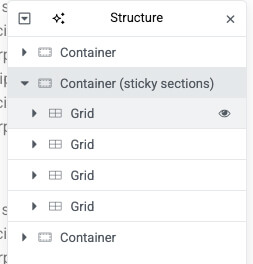
- Group the cards in one container. Put all the sections or grid elements you want to stack into the same parent container. Each card should be its own section inside that container.

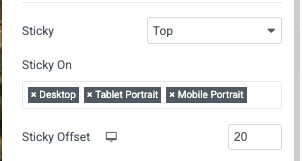
- Enable sticky top. For each section, go to Advanced > Motion Effects and set Sticky to Top.

- Set a sticky offset. Use the sticky offset to create a small gap from the top (20px is a good starting point). This keeps the cards from sitting flush against the edge of the browser.
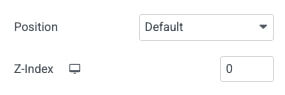
- Assign increasing z-index values. Under Layout, set the first card to z-index 0, the second to 1, the third to 2, and so on. A higher z-index means the card appears on top as new cards scroll in.

- Keep the elements in column. In Motion Effects, enable the option to keep the sticky item inside the column or container so the sections do not escape the parent layout while sticking.

- Preserve the gap between the stacked block and the rest of the page. If the parent container has padding you want to keep, set the parent padding to 0 and move the spacing to a top margin instead. This prevents the sticky cards from ignoring the visual gap when they fix to the top.
- Publish and test. Preview the page and scroll to see the stack in action. Adjust offsets and z-index values until the overlap looks natural.

Common pitfalls and tips
- Keep everything inside the same container. Sticky stacking breaks if cards are in separate parents.
- Watch overflow settings. Parents with overflow hidden can clip sticky elements. Remove overflow or adjust the container structure.
- Use small, consistent offsets. A 20px offset looks clean on most designs. Increase only if your header or other fixed elements require it.
- Control responsiveness. Disable sticky on mobile if it causes layout issues using the responsive controls in Motion Effects.
- Test z-index scope. If other site elements have high z-index values, pick a z-index range that avoids collisions with headers or modals.
Conclusion
Stack Cards Elementor is better, also, if you take soft background color changes, subtle shadows, or slow fade animations for each incoming card to enhance the depth effect.
The card stack technique (for case studies, timelines, or feature highlights) can guide readers through content step by step.
Stack Cards Elementor is a simple but powerful way to elevate page design using Elementor’s built-in settings.
Try it on a sample page, tweak the offsets and z-index values, and the stacked card effect will give your site a very professional, interactive touch.
