
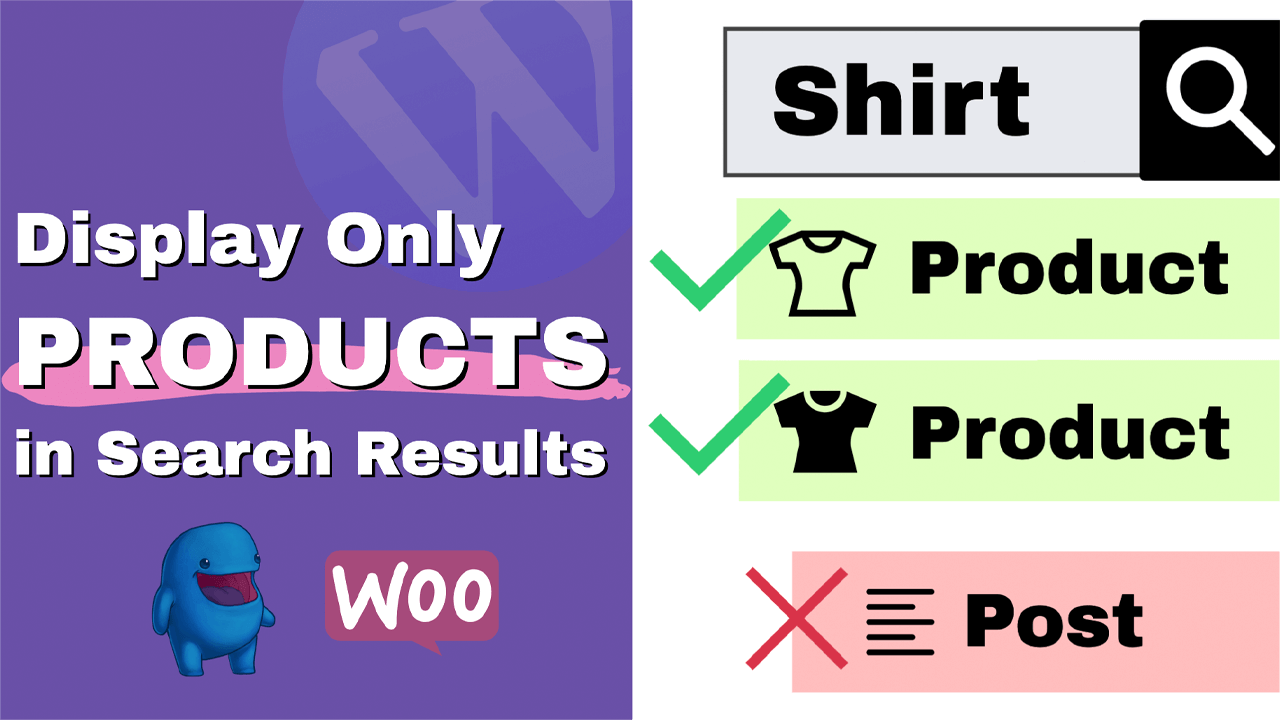
In this guide, I’ll show you how to configure your WordPress search to only search WooCommerce products, so customers see product results instead of pages or blog posts.
By default, WordPress returns any post type that matches the term; when you run an online store, that can confuse shoppers.
This simple tweak will keep your store search focused and professional.
Why Limit Search to Products?
- Improves user experience: shoppers find products faster.
- Reduces confusion: no more blog posts or pages mixed with store items.
- Boosts conversions: relevant results mean quicker purchases.
How the Solution Works
The change hooks into WordPress’ search query (pre_get_posts) and sets the post_type to your product post type. On WooCommerce, the post type is ‘product‘; for Easy Digital Downloads, it’s typically ‘download‘.
Implementing this allows you to search only WooCommerce products while preserving the rest of your site.
Where to Add the Code
- Use a child theme’s
functions.phpfile (recommended) or a code snippets plugin. - Back up your site or test on a staging environment before applying changes.
- Paste the function at the end of functions.php or as a new snippet and save.
Step-By-Step: Restrict WordPress Search to Products
- Open your child theme’s
functions.phpor install a code snippets plugin. - Copy the function that filters the search query and sets the post_type to ‘product’.
- Save and test a search on the front end. You should now only see products for matching terms — in other words, your site will only search WooCommerce products.
- If you use Easy Digital Downloads, change ‘product‘ to ‘download‘ so the query targets EDD items instead of WooCommerce products.
//Filter the search by title for downloads
add_action( 'pre_get_posts', 'filter_search_by_title' );
function filter_search_by_title( $query ) {
	if ( $query->is_search() && $query->is_main_query() ) {
		$query->set( 'post_type', array( 'product', 'post' ) );
// 		$query->set( 'orderby', 'title' );
// 		$query->set( 'order', 'ASC' );
	}
	return $query;
}
Sorting Search Results
By default, results are sorted by publish date. If you want alphabetical order, uncomment or add the query vars that set orderby => ‘title’ and order => ‘ASC’. Tweak those lines within the same function to modify the sorting behavior.
Tips and Troubleshooting
- If some content still appears, confirm it uses a different post type or custom post type name. You can search for the post type name via Google or ask ChatGPT if unsure.
- Test in a private browser or clear caches to ensure you see the updated behavior.
- Always prefer a child theme or the Code Snippets plugin to avoid losing changes when updating the theme.
Use Cases Beyond WooCommerce
This approach isn’t limited to one platform. You can adapt it for WooCommerce, Easy Digital Downloads, or any plugin that registers a product-style post type.
Substitute the post_type value, and the function will only target the items you want — for example, set it to ‘download’ and your site will only display EDD products.
Conclusion
This tutorial showed you how to easily customize the search results page to only return products instead of all post types.
Please hire us for a custom development, or leave us a comment if you need us to modify the function to suit a different e-commerce plugin than the two mentioned above.
