

This WP Travel Engine review explains how the plugin works, who it’s for, and how to set up a professional travel or tour booking site with WordPress.
I tested the plugin using a real one-week snow camp example, and below I’ll walk you through the essential steps—from installation to fixed-date bookings—so you can decide whether it fits your travel business needs.
What is WP Travel Engine?
WP Travel Engine is a WordPress plugin designed for travel agencies, tour operators, and guides who want to sell trips and accept bookings directly on their websites.
It converts trips into product-like entries with destinations, activities, pricing, itineraries, galleries, and booking forms—all organized into neat tabs on each trip page.
Why use WP Travel Engine?
- Purpose-built for travel: Trip-specific fields (itinerary, inclusions, trip info) make listing tours easy.
- Customer-friendly booking flow: Built-in booking forms and pricing packages simplify checkout.
- Expandable with add-ons: Extensions such as fixed start dates add important functionality.
- Works with WordPress familiar UI: Setup feels similar to working with products in WooCommerce.
Step-by-step setup and real-world example
I’ll use a one-week ski-and-snowboard camp in Aspen, Colorado, as an example. The following steps show how to create a trip listing that customers can browse and book.
1. Install and activate the plugin
Install WP Travel Engine just like any other plugin. Once active, it adds a central settings section and a Trips area where all your packages live—similar to WooCommerce’s products area. From here, you control destinations, activities, and global settings.
2. Create a new trip
Go to Trips and click “Add New.” Give the trip a clear title—example: “7 Day Ski & Snowboard School — Aspen, Colorado.” Assign a destination e.g.,d Aspen, Colorado), set activities (ski, snowboard), choose a trip type (easy or extreme), and add tags(e.g.,s snow)w to improve archive filtering.
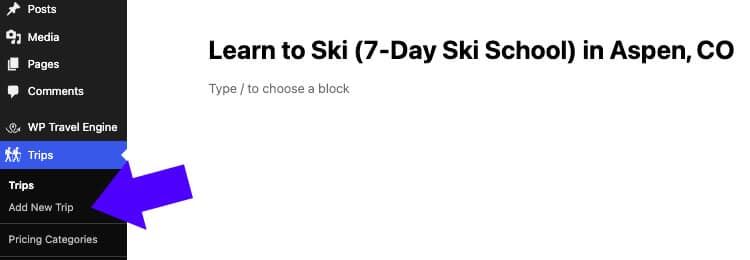
3. Use the WP Travel Engine trip interface
The plugin provides a structured interface with tabs for Overview, Date & Pricing, Itinerary, Includes/Excludes, Trip Info, and Gallery.
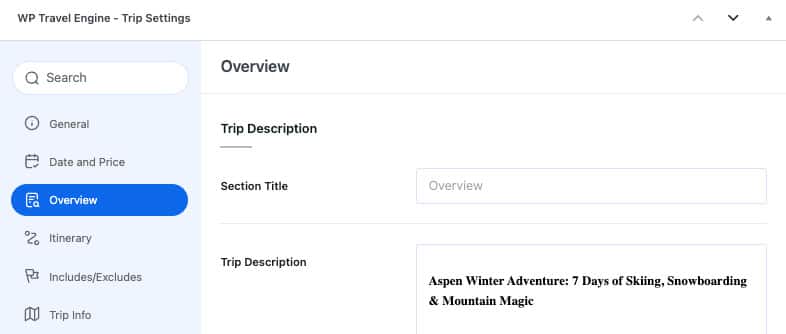
Enter the long description in Overview (I used Gutenberg blocks for structured content) and add a feature image so the trip page looks polished.
4. Add packages and pricing
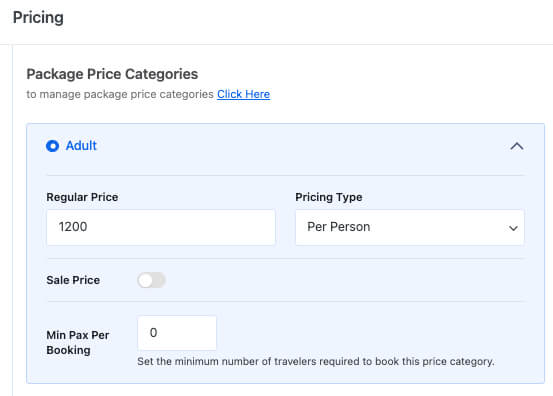
Under Date & Pricing, you can add packages—for example, a “General” package at $1,200 per adult. Packages can include short descriptions, and you can choose whether the trip runs year-round or on specific dates.
5. Build the itinerary
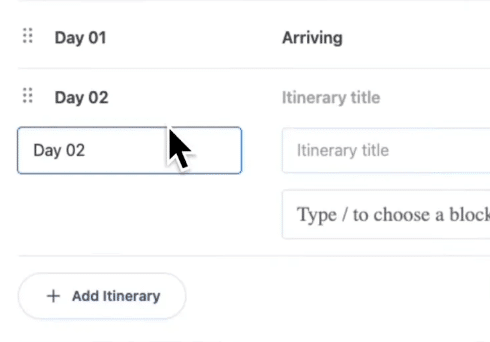
Use the Itinerary tab to break the trip down by day. Add day titles and descriptions (Day 1: Arrival, Day 2: Meet instructors, Day 3–7: Ski lessons and practice). The itinerary is shown in its own tab on the trip page, keeping content organized and easy to scan.
6. Define what’s included and excluded
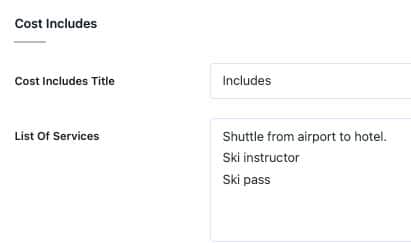
Populate the Includes section with items covered in the price—shuttle from airport to hotel, ski instructor, ski pass, etc. Use Excludes to list items that travelers must arrange themselves, like flights to the destination.
7. Add gallery images and publish
Upload images or videos to the Gallery to create an attractive visual presentation. When you publish, WP Travel Engine generates a clean trip page with tabs, a booking form, itinerary, inclusions, and contact options for customers.
8. Offer fixed starting dates with an add-on
If your trips run on specific start dates, install the Trip Fixed Starting Dates add-on (requires WP Travel Engine Pro).
After activating the add-on, edit Date & Pricing on a trip and add the exact start dates (for example, March 1, March 15, April 1).
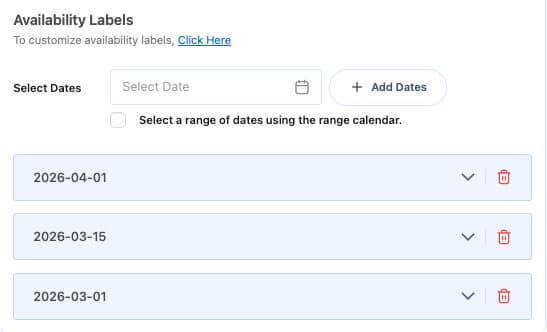
After saving and refreshing the trip page, the trip page displays those dates so customers can choose and book the date that works for them.
9. Trip archive and filters
All trips are listed on the trips archive (typically yoursite.com/trip). This page provides shortcards for each trip, with filtering options for dates, locations, activities, and other attributes—handy when you manage multiple packages or seasonal offerings.
Tips and best practices
- Write clear itineraries: Day-by-day clarity reduces booking questions.
- Include logistics up front: Arrival city, transfers, cancellation policy, and what’s not included.
- Use high-quality images: Visuals increase conversions for tours and activities.
- Consider add-ons early: fixed dates, payment gateways, and integrations may require a Pro plan or extensions.
Pros and limitations
Pros
- Tailored fields for travel listings and bookings
- Clear, tabbed presentation that customers understand
- Extendable via add-ons for real-world needs, like fixed dates
- Seamlessly working with Elementor
Limitations
- Advanced features (fixed dates, gateways) may require Pro or paid add-ons
- Some customization might need theme tweaks or developer help for styling
- Conclusion
Conclusion
This WP Travel Engine review showsthat the plugin is a solid choice for travel agencies, tour operators, or anyone looking to sell trips online with WordPress.
It offers a purpose-built trip structure, an easy booking flow, and useful add-ons for real-world operations, such as fixed start dates. If you’re building a travel booking site, WP Travel Engine can save time and give your customers a professional booking experience.
Suppose you plan to list multiple seasonal trips and want custom start dates, budget for the Pro version, and relevant add-ons.
With clear itineraries, strong images, and properly configured dates and pricing, you can launch a functional travel booking site quickly.
