

Suppose you want more control over when plugins, themes, or the core updates on your site.
This guide will show you three simple ways to turn off automatic updates in WordPress.
Automatic updates can be helpful, but they can also introduce unexpected conflicts. Below, I walk through a quick dashboard fix, two manual code methods, and a plugin-based option so you can choose the approach that fits your workflow.
When and why you might want to turn off automatic updates
Automatic updates can reduce maintenance, but at the same time, they can also lead to compatibility problems, for example, when an update to a plugin or theme conflicts with your setup.
Suppose you would rather run tests on a staging site or perform updates manually during a maintenance window. In that case, the option of turning off automatic updates in WordPress is the perfect way to gain the control you require.
Method 1 — Disable auto updates per plugin from the Dashboard (fast)
The most straightforward way to proceed with this task is also effective when you want to suspend updates only for a single plugin or several plugins.
- Open your WordPress admin and go to Plugins > Installed Plugins.
- Find the plugin you want to control and click Disable auto-updates next to it.
- Repeat for any other plugins you want to manage manually.

This approach is fast and secure due to the lack of file editing involved. The impact is solely on the particular plugins you decide on.
Method 2 — Disable automatic core updates via wp-config.php
To turn off the automatic updates of the WordPress application, you have to make changes to the wp-config.php file. You can find this file in FTP, or a File Manager plugin is an option, even if you do not have FTP access.
- Install a file manager plugin or connect with FTP and open wp-config.php.

- Scroll to the bottom of the file and add the following line:
- define(‘WP_AUTO_UPDATE_CORE’, false);
- Save the file and upload it back if using FTP.
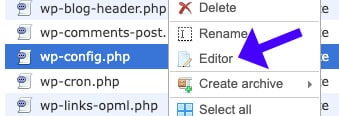
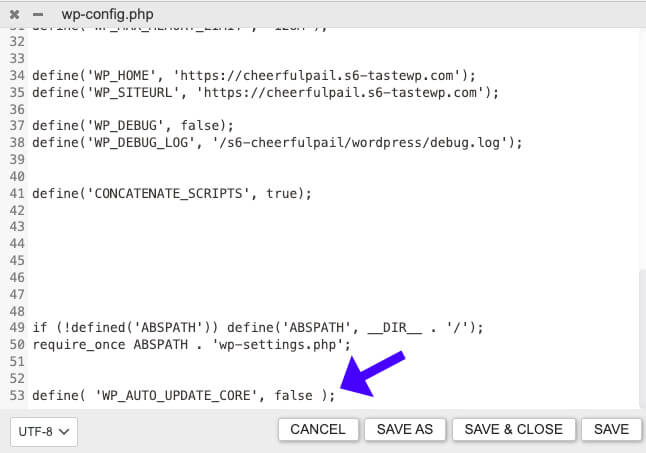
This constant alone can easily stop automatic updates of the WordPress core. It is worth noting that WordPress may automatically perform minor security updates. However, this is the only line setting that stops all core auto-updates. If you want to use automatic minor releases, leave this setting alone or search for more explicit alternatives.
Method 3 — Disable plugin and theme auto-updates via functions.php
To turn off the automatic updates for all plugins and themes, you have to enter two filters into your theme’s functions.php file. Note that the recommended approach is to use a child theme or a site-specific plugin, which will help prevent losing changes upon theme updates.
- In the admin, go to Appearance > Theme File Editor and open functions.php, or edit the file via FTP.
- At the bottom of the file, add these two lines:
- add_filter(‘auto_update_plugin’, ‘__return_false’);
- add_filter(‘auto_update_theme’, ‘__return_false’);
- Save the file.
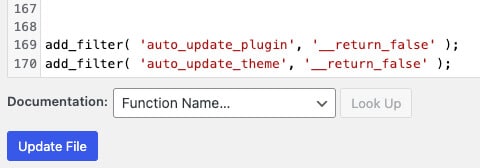
These filters stop automatic updates for plugins and themes across the site. Keep in mind that editing theme files can cause errors if a syntax mistake is introduced; therefore, always back up your files before making changes.
Alternative: Use a plugin to manage automatic updates
If you prefer a UI-based, reversible approach, use a management plugin like Easy Update Manager. This plugin centralizes control for core, plugins, themes, and translation files.
- Go to Plugins > Add New and search for Easy Update Manager.
- Install and activate the plugin.
- Open Dashboard > Updates Options.
- Use the toggles to enable or disable automatic updates for Core, Plugins, Themes, and Translations.
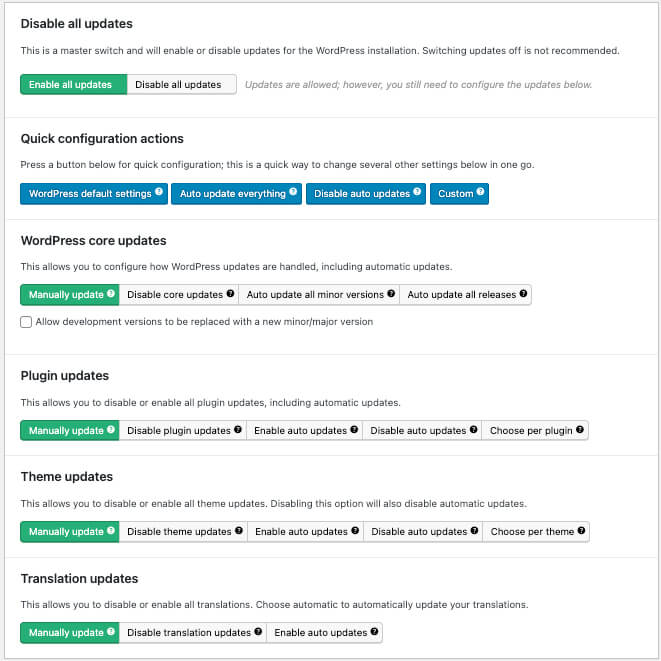
The options, when toggled, automatically save the changes that are made. This is a perfect solution for selectively deactivating automatic updates on WordPress without altering the code.
Best practices and final tips
- Always back up before changing update settings. Create daily backups to restore your site quickly in case an update causes issues.
- Test updates on a staging site before applying them to production.
- Consider allowing automatic minor security updates while turning off major releases to strike a balance between security and control.
- If you are not comfortable editing files, use the per-plugin Dashboard option or a management plugin.
Shutting off automatic updates in WordPress is like being in the driver’s seat but driving on a rocky road at times. Before proceeding, ensure that you have a properly functioning backup and update plan for the website that is both secure and operational.
Conclusion
If you prefer professional support, our service plans set up backups, handle updates, and troubleshoot issues caused by updates. A daily backup, combined with a controlled update process, will keep your site safe and minimize downtime.
