

Want a simple, reliable Elementor registration form without a plugin or extra addons?
I’ll walk you through a clean method that uses only Elementor’s Form widget and a small PHP function added to your theme—no premium extensions, no bulky membership plugins—just Elementor and a few lines of code.
What this solution does
This approach creates a front-end signup form that registers users in WordPress.
The form can collect standard fields (username, email, password) plus optional meta (first name, last name).
After successful registration, users are redirected to your login page or to any URL you specify. It works with Elementor Pro’s Form widget and a lightweight function added to your theme’s functions.php of the child theme.
Overview of the steps
- Create the form layout in Elementor.
- Name the form so the PHP function can identify it.
- Add required fields: username, email, password (mark them required).
- Set Actions After Submit to redirect to the login page.
- Paste the PHP function into your theme’s functions.php file.
- Test registration in an incognito window and verify the new user appears in Users.
- Optionally hide the form for logged-in users using display conditions.
Step-by-step walkthrough
1. Build the form
Start by creating a new section, then add the Elementor Form widget to it. The form must have a name that matches the one your function checks for.

At least three fields must be required: username, email, and password. Besides that, you can add any other optional fields, for example, first name or last name, for regular text fields.
2. Configure Actions After Submit
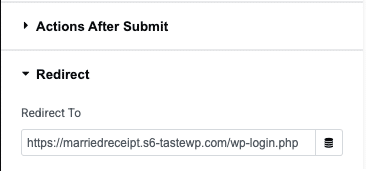
Remove any default actions and append a Redirect action. The redirect should point to your login page (like wp-login.php or a custom login URL). This is for redirecting new users to the login screen after registration is complete.
3. Add the PHP handler
In your theme or child theme’s functions.php, add a function that listens for submissions from the form name you set. The handler should:
- Check the form name and that the required POST fields are present.
- Sanitize inputs and validate the email and username.
- Create the user with
wp_create_userorwp_insert_userusing the username, password, and email. - Optionally store the first name and last name using
update_user_meta. - Handle errors gracefully (existing username or invalid email).
The fundamental WordPress functions that you will utilize are wp_create_user($username, $password, $email) and update_user_meta($user_id, ‘first_name’, $value).
The code must be straightforward and focused solely on sanitization and user creation.
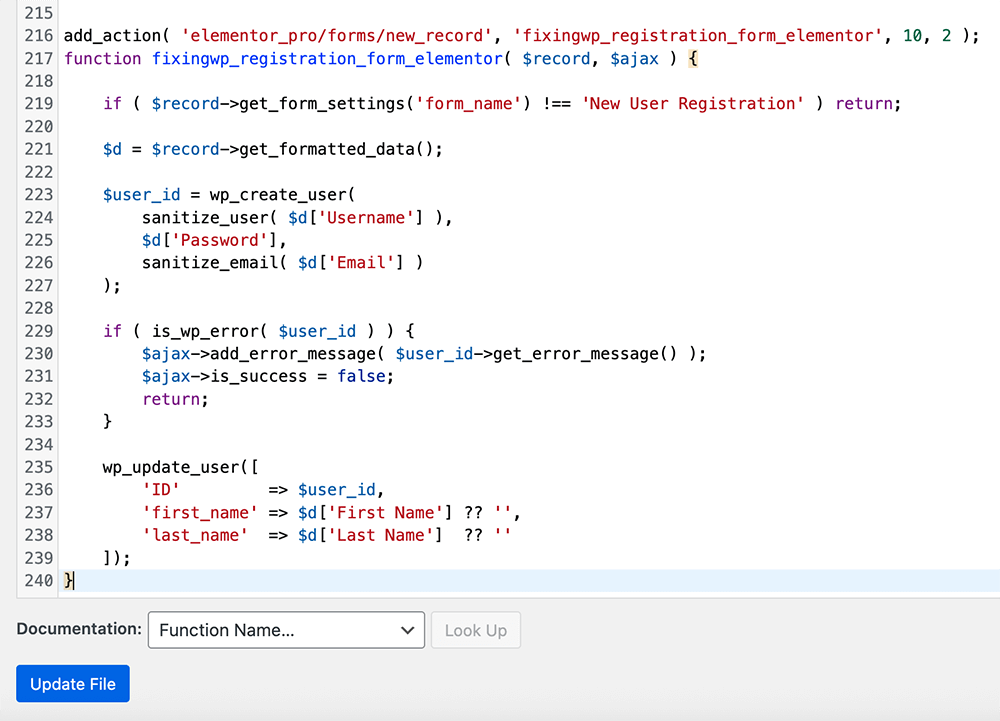
add_action( 'elementor_pro/forms/new_record', 'fixingwp_registration_form_elementor', 10, 2 );
function fixingwp_registration_form_elementor( $record, $ajax ) {

    if ( $record->get_form_settings('form_name') !== 'New User Registration' ) return;

    $d = $record->get_formatted_data();

    $user_id = wp_create_user(
        sanitize_user( $d['Username'] ),
        $d['Password'],
        sanitize_email( $d['Email'] )
    );

    if ( is_wp_error( $user_id ) ) {
        $ajax->add_error_message( $user_id->get_error_message() );
        $ajax->is_success = false;
        return;
    }

    wp_update_user([
        'ID'         => $user_id,
        'first_name' => $d['First Name'] ?? '',
        'last_name'  => $d['Last Name']  ?? ''
    ]);
}
4. Test the workflow
Open the page in an incognito window, submit the form with a test account, and verify the redirect lands on the login page.
Log in with the new credentials to confirm everything was created correctly. Finally, check the WordPress Users screen to see the new user entry.
Extra tips and best practices
- Use a child theme so updates won’t overwrite your functions.php changes.
- Sanitize and validate every field to prevent insufficient data or security issues.
- Display conditions in Elementor let you hide the form from logged-in users—set the form to show only when the user is logged out.
- Password strength can be enforced using client-side hints or server-side checks before creating the user account.

Conclusion
Creating an Elementor registration form manually is the best alternative to heavyweight, complex solutions like plugins for simple membership and user signup requirements.
You can let users register, save meta, and redirect them all without third-party extensions; you need to set up the Form widget and a simple PHP handler.
First, try it on a staging site, add input validation, and you will be ready to deploy a clean signup flow to production.
