

If you’ve hired a developer or need to give someone temporary administrator access to your WordPress site, you want to do that safely without compromising your site’s security.
In this guide, I’ll walk you through a safe and simple method using the Temporary Login Without Password plugin, show you how to verify access, and explain best practices for keeping your site secure.
Why not create a new admin user instead?
Creating a permanent administrator account for a contractor or developer is a risky move. Forgotten accounts, reused passwords, or inactive logins increase your attack surface.
Instead, use a temporary, revocable access method so the person can do their job and you retain complete control.
What you’ll need
- A WordPress site with plugin installation privileges
- The email address of the person you want to grant access to
- The Temporary Login Without Password plugin (free and easy to use)
Step-by-step: Create a temporary administrator login
1. Install and activate the plugin
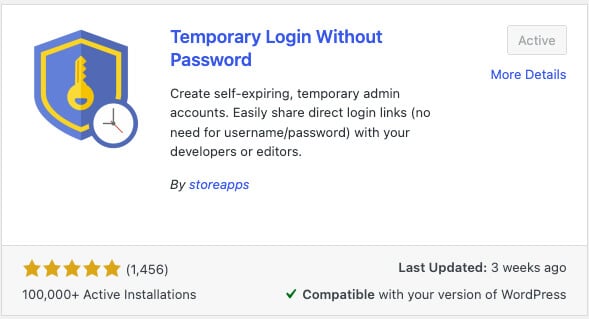
Go to your WordPress dashboard → Plugins → Add New. Search for ‘Temporary Login Without Password’, install, and activate it.
2. Open the plugin dashboard
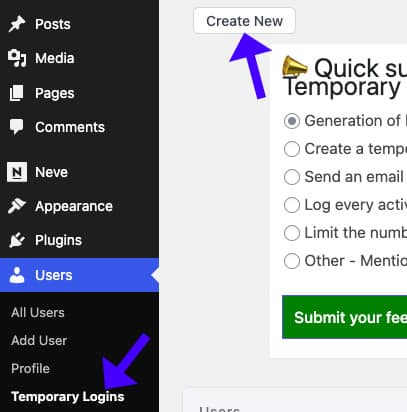
Navigate to Users → Temporary Logins. You’ll see the plugin’s simple dashboard and the option to create a new temporary login.
3. Create the temporary login
Click Create New and enter the developer’s email address. Set the role (for complete control, choose Administrator) and pick an expiry date for the login link. When you’re done, click Submit.
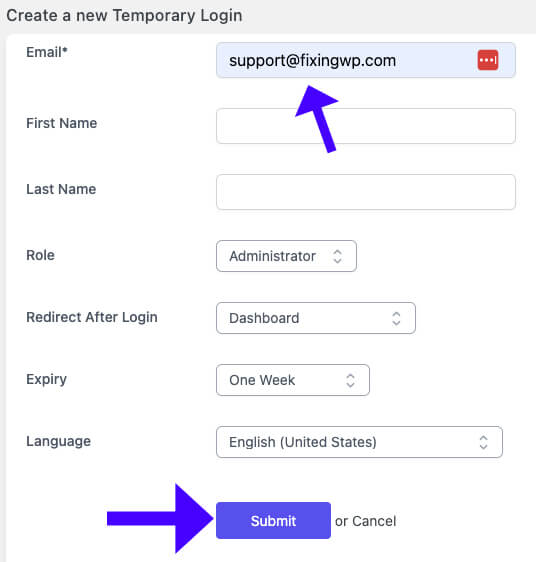
“It will create a temporary login link, which the administrator can use.”
4. Share the link and verify
Copy the generated link and send it directly to the developer. To verify it works, open an incognito/private browser window (or log out) and paste the link. You should be redirected to the WordPress admin dashboard, confirming the temporary login works as expected.

How to revoke or pause access
When the developer finishes the work, you can immediately turn off the link:
- Return to Users → Temporary Logins.
- Click the X next to the login to delete it, or use the pause/delete options provided by the plugin.
Once deleted, the link can no longer be used.
Best practices and security tips
- Limit role and duration: Assign the Administrator role only when necessary. Set the shortest reasonable expiry date.
- Verify identity: Confirm the developer’s email and identity before granting access.
- Use incognito to test: Always test the temporary link in a private browsing session to confirm it works and that no existing session interferes.
- Monitor activity: Check audit logs or activity plugins to see what changes were made while the temporary account was active.
- Revoke immediately: Delete the temporary login as soon as the job is done — don’t wait for the expiry date if access is no longer needed.
When not to give Administrator rights
Not every task requires full admin access. Avoid giving Administrator rights for:
- Minor content edits — use Editor or Author roles instead.
- Tasks limited to specific plugins — consider creating a role with restricted capabilities or using plugin-specific access controls.
Need help or ongoing maintenance?
If you’d prefer to avoid the hassle entirely, we offer custom development and maintenance services at FixingWP.
Our maintenance plans include options to manage access, apply updates, and keep your site in a secure “Zen mode” so you can focus on your business while we handle the technical work.
Conclusion
Granting temporary administrator access in WordPress doesn’t have to be risky. Using a Temporary Login Without Password allows you to provide secure, time-limited access without creating permanent admin accounts.
Install the plugin, create a login with an expiry date, verify it in an incognito window, and delete it when the job is done — simple, safe, and under your control.
If you need help setting this up or want someone to manage access for you, check out FixingWP — we’re here to help.
