In this step-by-step guide, I’ll walk you through the process of migrating WordPress from one domain or hosting platform to another using a fast and reliable method.
This tutorial covers the exact process I use: exporting a complete website, importing it into a fresh WordPress install, handling standard limits, and a couple of service options if you’d rather not do it yourself.
Why this method?
When you need to move a full WordPress site — files, database, plugins, themes, media, and settings — the most straightforward route is to use a migration tool that packages everything into a single file and restores it on the new site.
In this article, you’ll learn how to migrate WordPress with minimal downtime and minimal fuss.
What you’ll need before you begin
- An administrator account on the source (current) WordPress site.
- An administrator account on the target (new) WordPress site — a fresh install is ideal.
- Access to install plugins on both sites.
- A copy of the All-in-One WP Migration plugin (free version works for many sites).
- Ensure you have sufficient disk space on your computer to download the export file.
Quick overview — the process
- Install All-in-One WP Migration on the source site and export the entire site to a .wpress file.
- Download the .wpress export file to your computer.
- Install All-in-One WP Migration on the destination (empty) site and import the .wpress file.
- Allow the importer to overwrite the fresh site and wait for the import to complete.
- Visit the new site, test the pages, images, and plugins, and adjust any remaining settings as needed.
Step-by-step: How to Migrate WordPress using All-in-One WP Migration
1. Prepare the source site
Log in to the WordPress site dashboard you want to move. Go to Plugins → Add New, search for “All-in-One WP Migration“, install and activate it. The plugin works out of the box.
2. Export the site
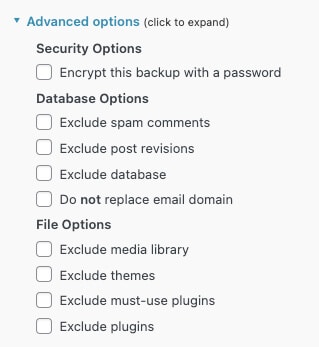
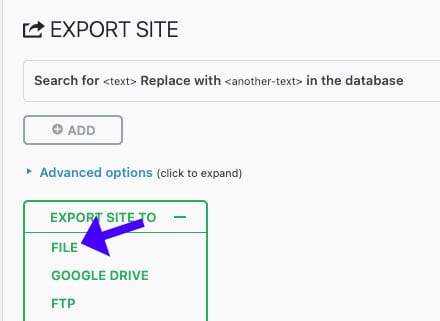
Once activated, go to the plugin’s Export section. You can expand the Advanced options to exclude specific content if needed. To export the entire site, click “Export Site” and then select “File” from the menu. The plugin will compile your site into a single .wpress file.
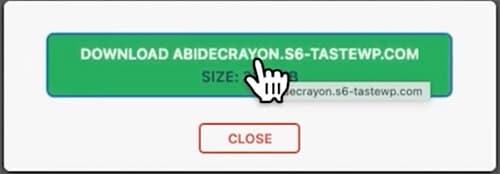
When the compilation finishes, click ‘Download’ to save the export file to your computer. The time it takes depends on the size of your site — media-heavy sites will take longer.
3. Prepare the destination site
On your new domain or host, log in to the fresh WordPress install. Again, go to Plugins → Add New, install, and activate All-in-One WP Migration.
4. Import the .wpress file
Open the plugin’s Import tab and either choose the .wpress file you downloaded or drag it from your browser’s downloads area into the import window. Wait for the file to upload and unpack — this will take longer for bigger files.
When the import finishes, you’ll be prompted to allow the importer to overwrite the existing site (this is why a fresh install is recommended). Click Proceed and let the plugin complete the process.
5. Verify and test
After a successful import, you’ll get a confirmation message. Visit the homepage and navigate through the site to ensure that content, images, plugins, and theme settings are intact. Check admin pages, forms, and any third-party integrations for errors.
Common issue: upload size limits and how to handle them
The free version of All-in-One WP Migration imposes a file size limit for imports. If your .wpress export exceeds the limit, you’ll see an error, and the import won’t proceed.
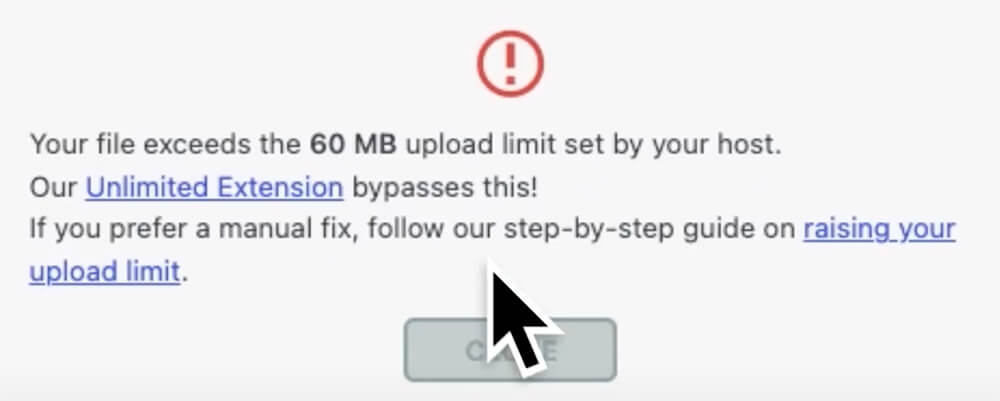
There are two standard solutions:
- Purchase the Unlimited Extension from the plugin developer (typically a one-time cost). This removes the file size restriction for imports.
- Use a migration service or package that already includes the licensed extension — for example, FixingWP offers migration as part of our professional package if you prefer we do it for you.
Tips and best practices
- Always back up the source site before exporting — even though the plugin creates a file, having an additional backup (server or file-level) is wise.
- Perform the migration on a fresh WordPress install to avoid conflicts when the importer overwrites existing data.
- If your site is enormous, consider excluding heavy media during the export and moving media separately, or use the unlimited extension to simplify the process.
- After migrating, clear caches (both server-side and plugin caches) and reset permalinks by visiting Settings → Permalinks and clicking Save.
- Check SSL settings and update URL references if you have changed domains — the migration tool typically handles URLs, but double-check links and images to ensure they are accurate.
Alternative options
If you’d rather not handle the migration yourself, I offer professional migration services at FixingWP.com. Our professional package includes licensed tools and a comprehensive migration service, so you don’t have to worry about plugin license limits or complex edge cases.
Conclusion
Moving a WordPress site between domains or hosting providers doesn’t have to be complicated. Using All-in-One WP Migration, you can export a working site into a single file and import it into a new WordPress install.
Remember to check size limits, thoroughly test the new site, and back up everything before you start. If you need help, I’m available through FixingWP.com and can assist with the migration for you.
How to Migrate WordPress Websites – Frequently Asked Questions
No, the plugin is user-friendly and designed for beginners. You do need admin access to both sites and the ability to install plugins.
Downtime is usually minimal. If you move DNS to a new host, plan the DNS changes carefully and consider keeping both sites accessible until the propagation is complete.
Purchase the Unlimited Extension from the All-in-One WP Migration developer or use a professional migration service that includes the license. You can also split or exclude large media files and move them separately.
The plugin updates URLs during import. If you’re moving to a new domain, verify internal links, images, and any hard-coded URLs after import.
Yes — use the Advanced export options in the plugin to exclude plugins, themes, or media if you want a partial export.